Settings – How to enable local server for BIG Waiter?
Introduction
Local server utilizes the WiFi connected by both the BIG POS Pro and BIG Waiter to establish connection to each other. This section introduces how to enable the Local Server feature in BIG POS App (BIG POS Pro only).
Prerequisite for Using Local Server
To use the ‘Local Server’ and ‘Waiter’ feature, both apps must be connected to the same WiFi to successfully connect the Waiter app to BIG POS Pro.
How to enable ‘Local Server’? (on BIG POS Pro)
To begin enabling local server, follow the following steps:
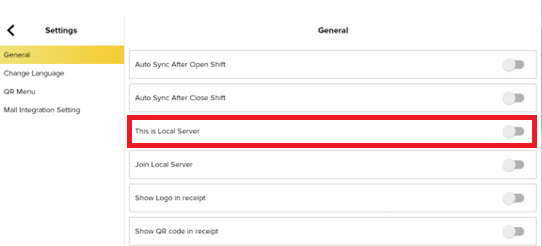
- Open the settings within the Pro app.

- Turn on the local server feature under the General section of Settings.

How to open QR for Waiter to connect? (on BIG POS Pro)
To allow BIG Waiter to connect to the host, follow the following steps:
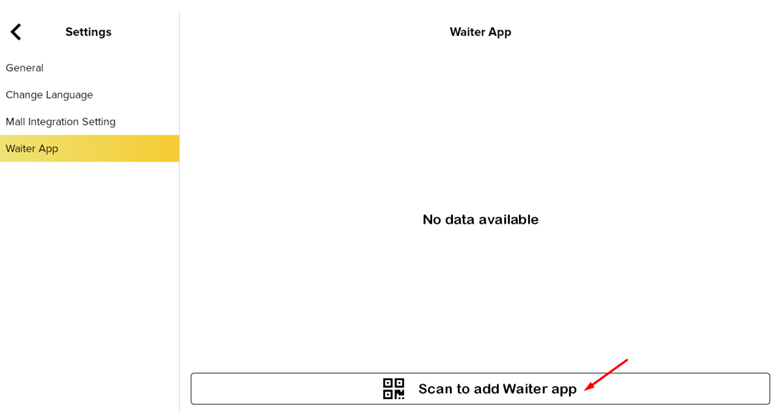
- After turning on Local Server, head to the Waiter App section within Settings.
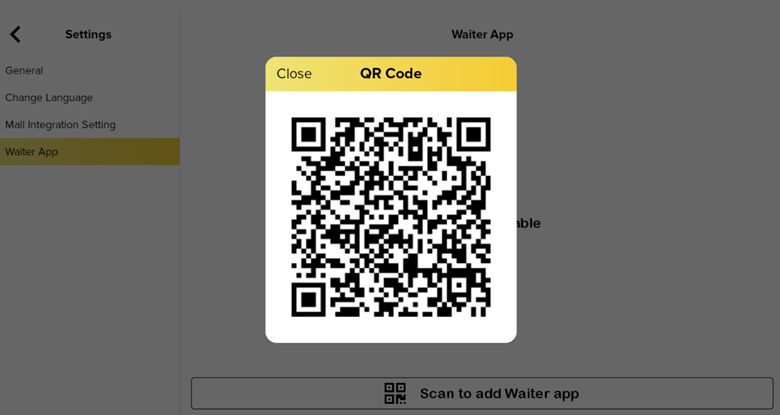
- Click on ‘Scan to add Waiter app’ to prompt out the QR code.
- The user can proceed to use the BIG Waiter and scan the QR code. Refer to Waiter app section for more info.
Prerequisite for Using BIG POS Pro as connecting client
Connecting BIG POS Pro from a device to another allows the user to perform basic operations similar to the Waiter version such as creating an order, sending order and merging tables while also containing numerous additional functions such as payment, reviewing previous transactions and refund.
Before connecting a BIG POS Pro to another BIG POS Pro, the user must ensure the client (the connecting app) must have the latest sync and shift closed before proceeding to connect to another device (host).
How to connect to a BIG POS Pro from another device using BIG POS Pro?
To allow client to connect to the host, follow the following steps:
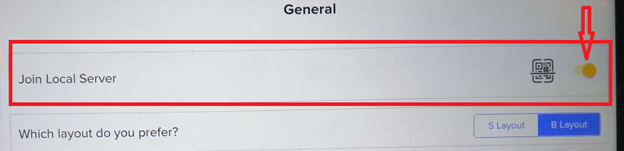
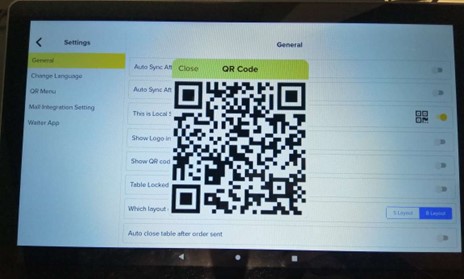
- After turning on Local Server, click on the QR logo within the column on the host app.

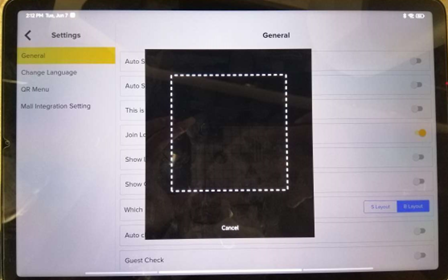
- Within the Settings section of the client app, click on ‘Join Local Server’.
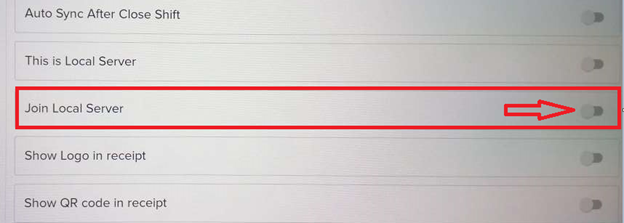
- Similar to the BIG Waiter, scan the QR code displayed on the host app step 1 to establish the connection.
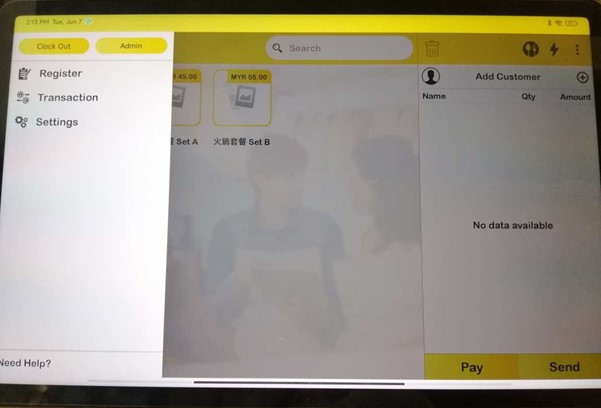
- Client app will display the main interface upon successful connection to the host app.
- To disconnect from the host, simply click again ‘Join Local Server’.