BIG Waiter – Table Management
Introduction
Managing tables in BIG Waiter is similar to the BIG POS Lite and Pro. This section introduces how to manage tables using the BIG Waiter app.
Prerequisite for Using Table Management
For the apps to have table features, the user must enable ‘Assign Table Number’ and have a valid list of tables set up within the Branch section of Setting in Web Admin. Refer Company Profile Section for more info.
How to Open Table?
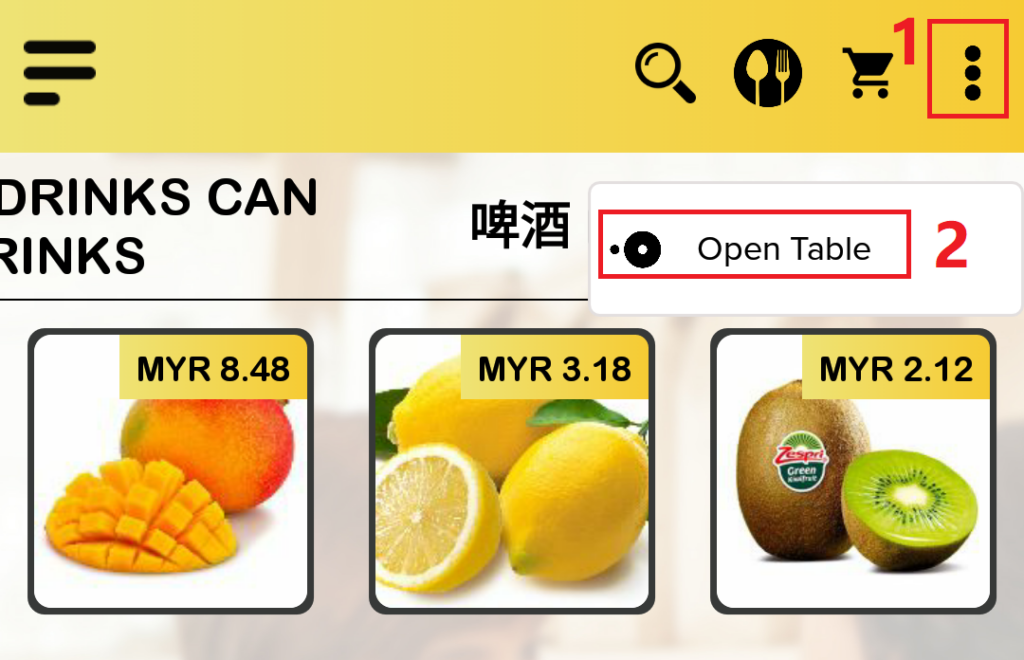
- Click on the ‘More Options‘ icon on the top right side of the app.
- Proceed to click on ‘Open Table‘ to reveal the table list.
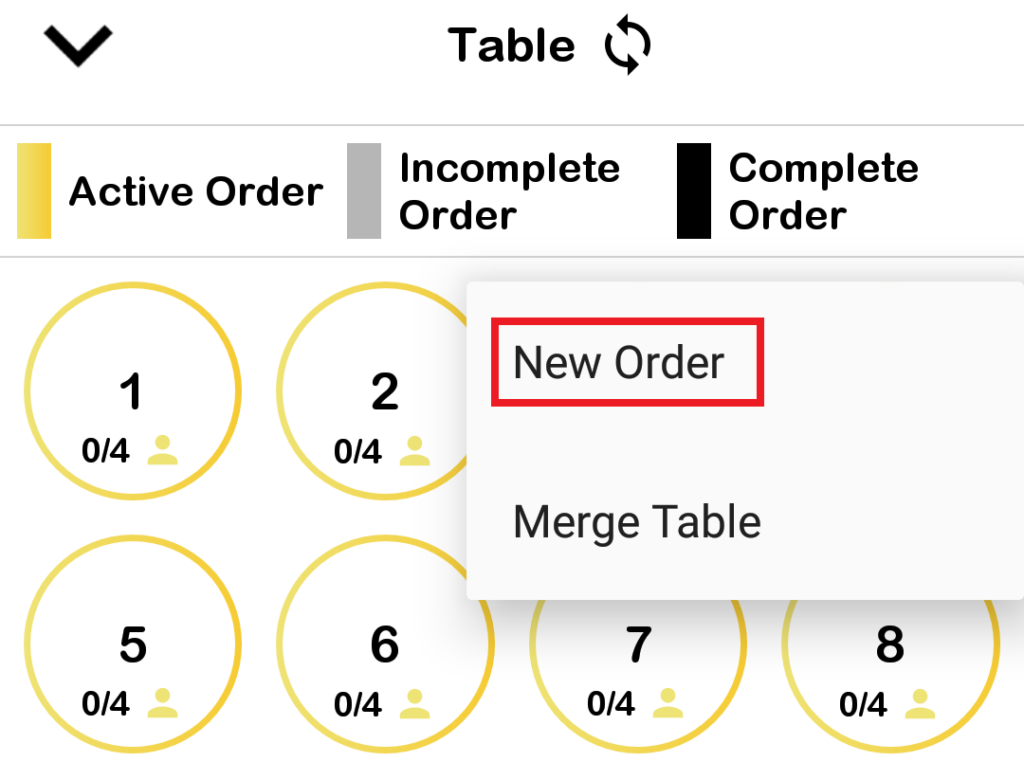
- Within the table list, pick a table number and click on it, then select ‘New Order‘.
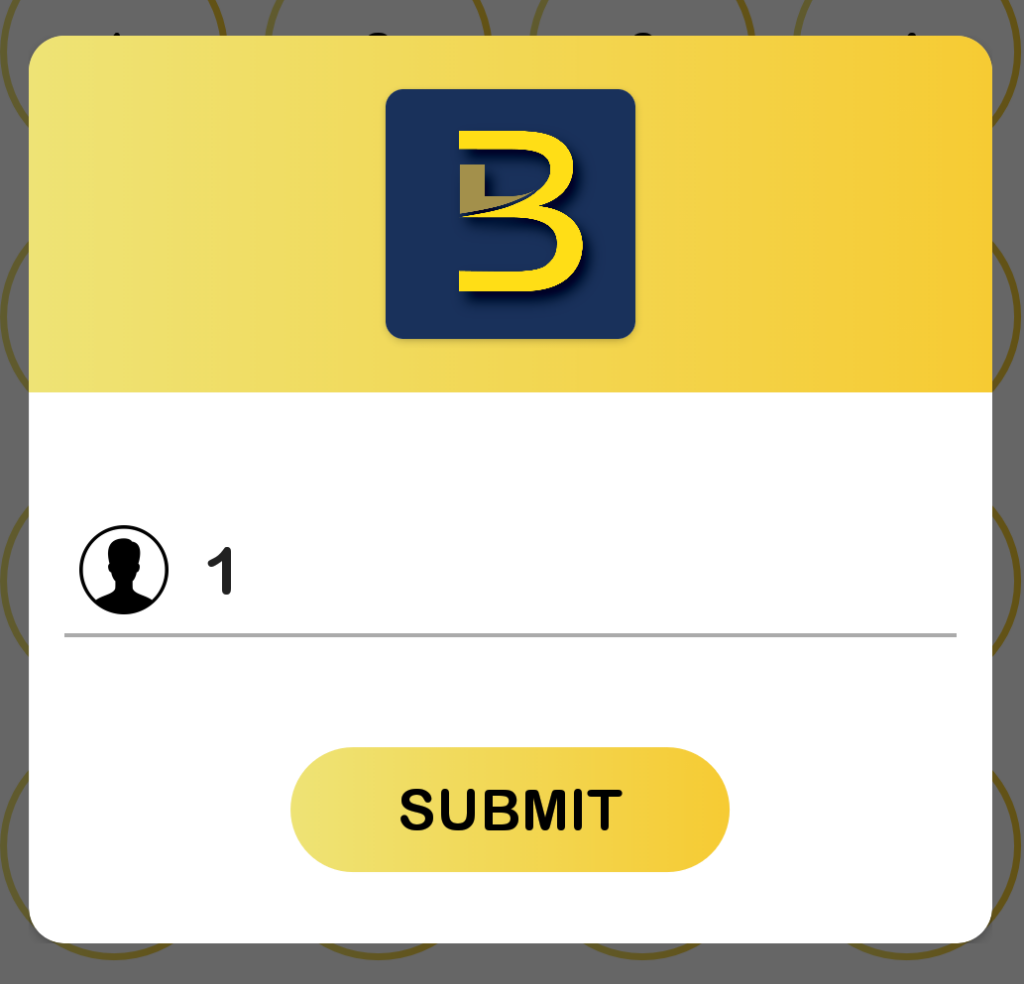
- Type the amount of Pax. (If Pax is enabled in Company Profile)
How to Merge Table?
Merge table can be done on both empty tables and opened tables.
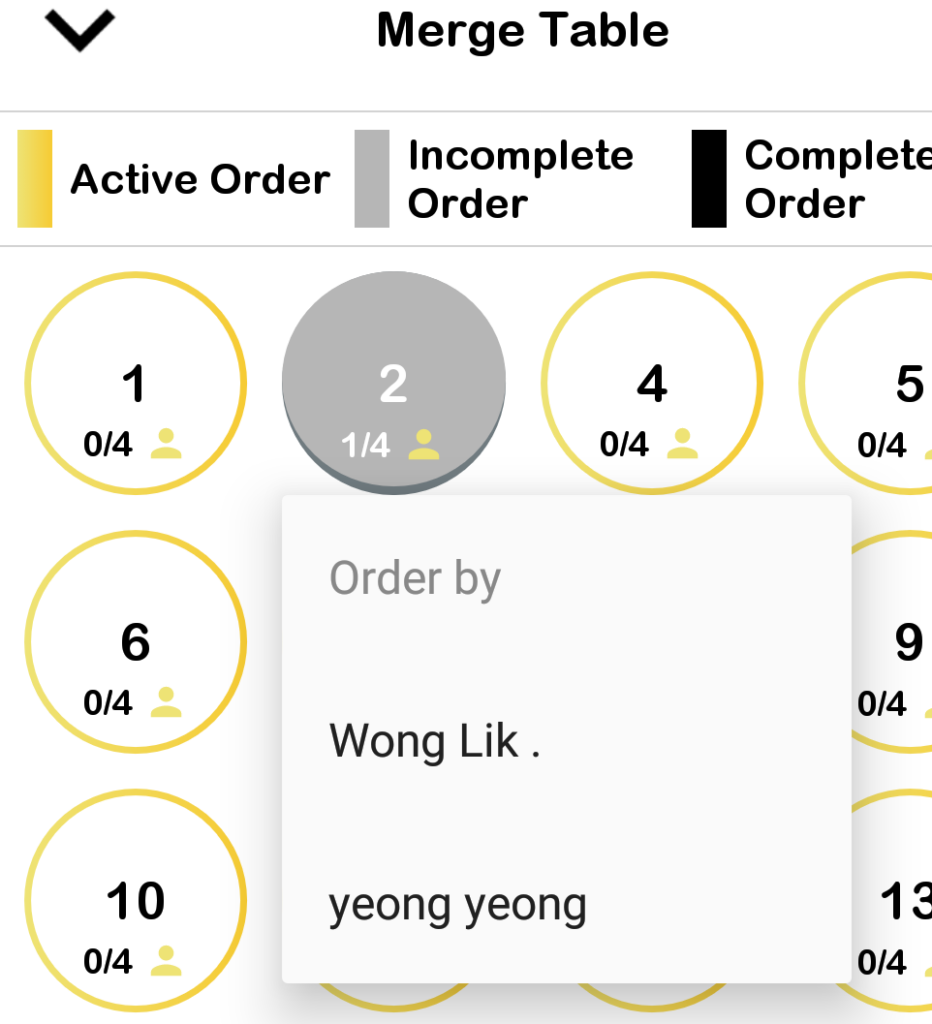
- To merge empty tables, click on any empty table within the list of tables menu and select on ‘Merge Table‘.

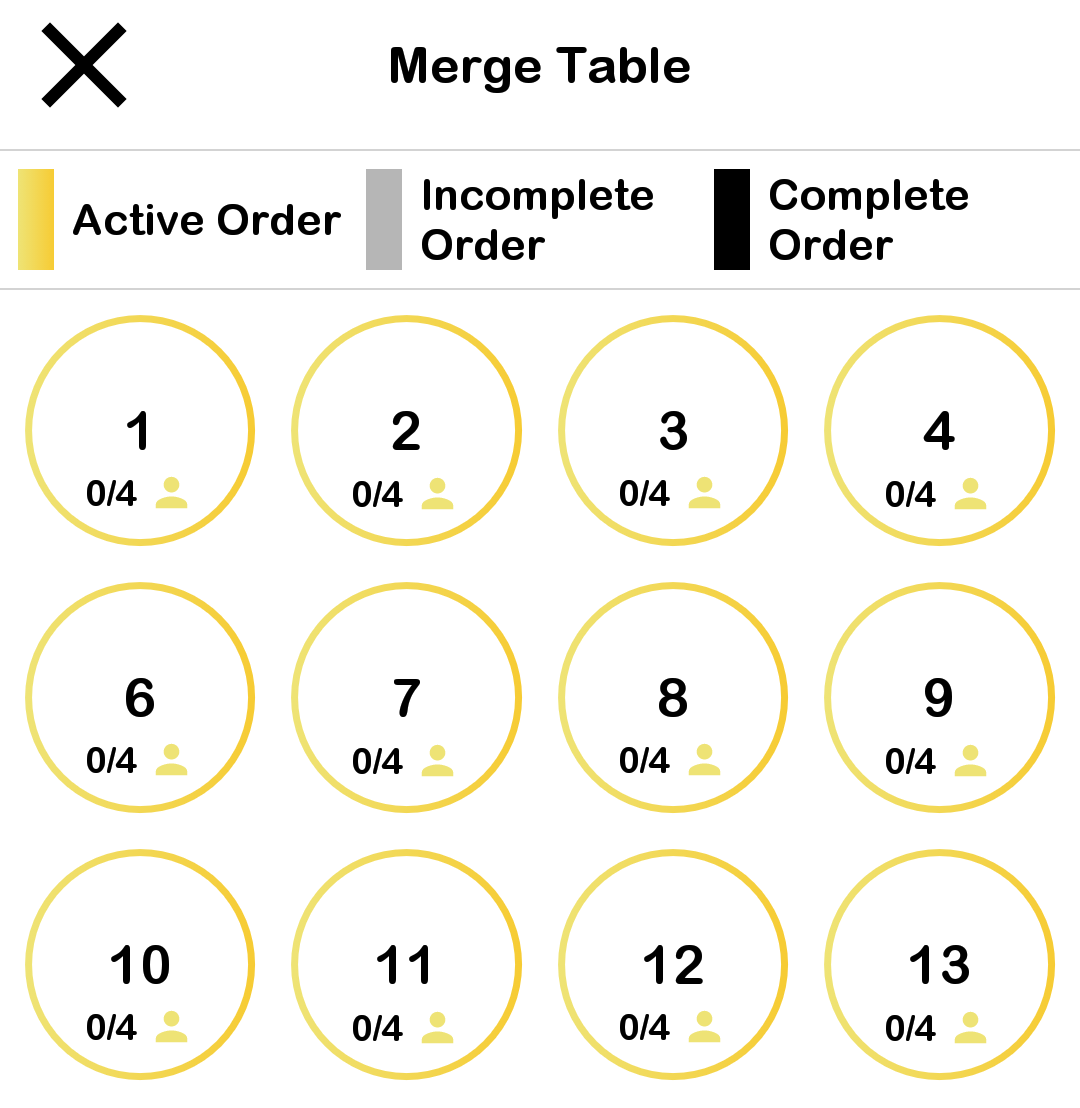
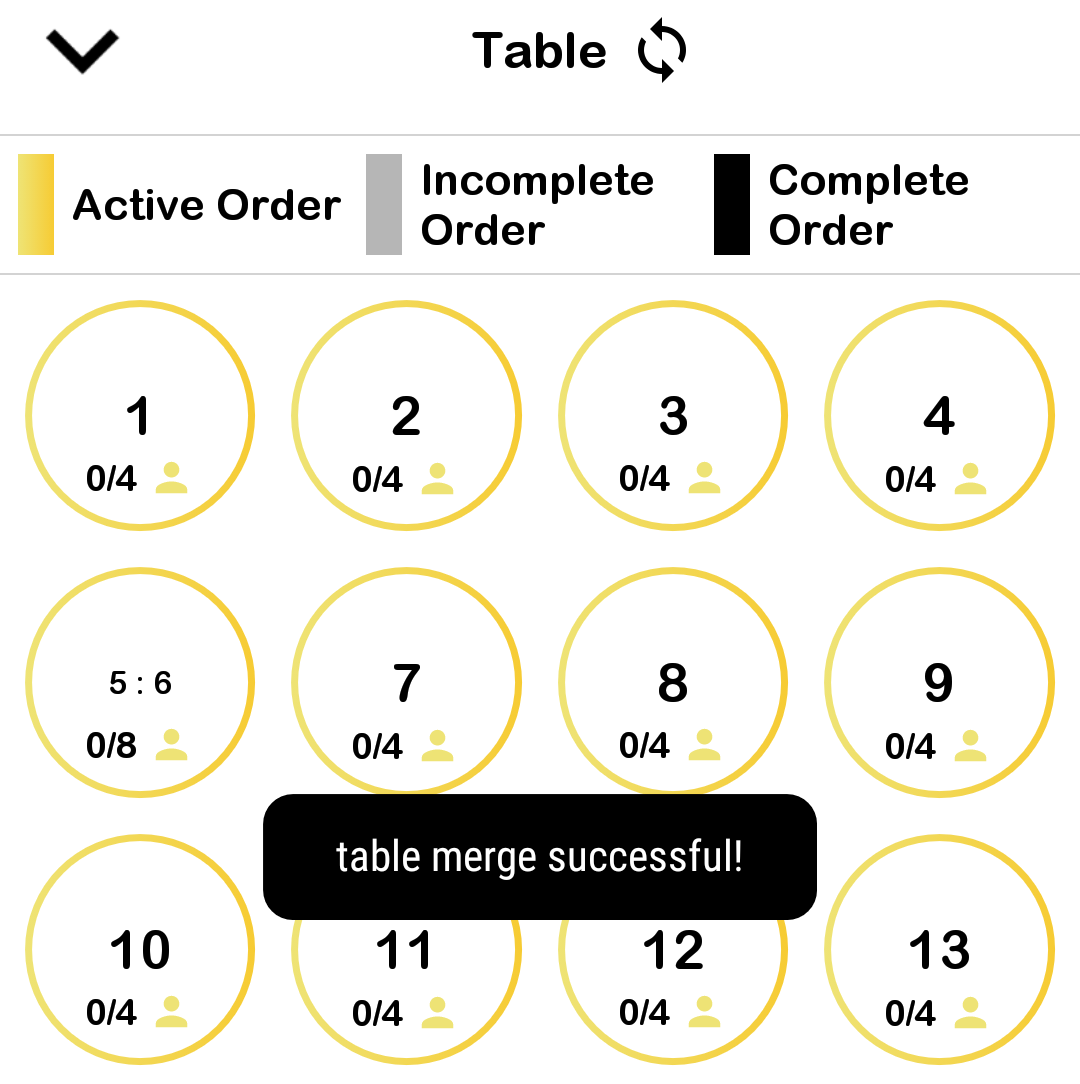
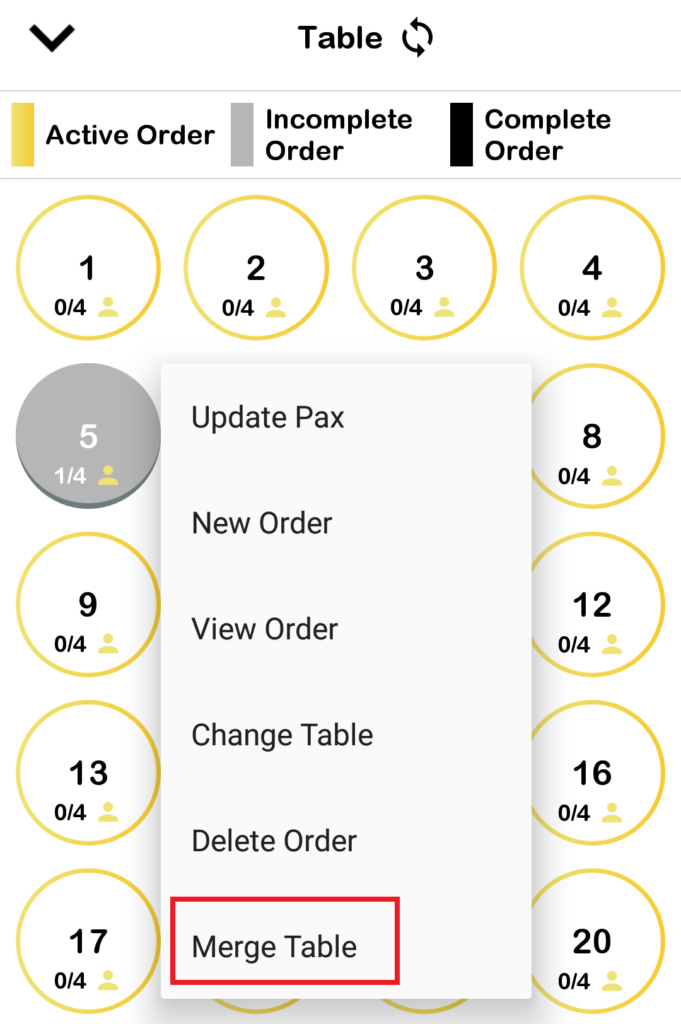
- To merge an opened table, click on the opened table and select ‘Merge Table‘ via the dropdown menu.
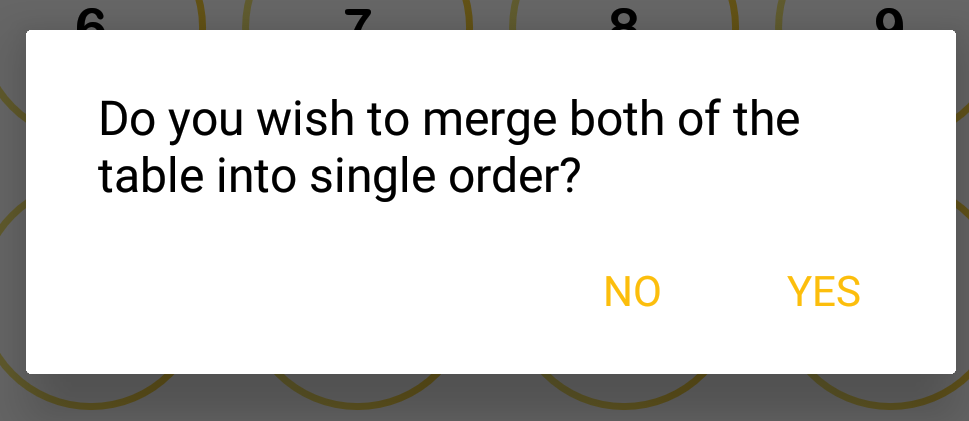
- When merging opened tables with orders inside the cart, the user will be prompt an option to combine both orders into a single receipt.
- When merging tables with orders taken by different employees, the user will be prompt an option to select which employee’s name shall be recorded as the person who takes the order.
How to Unmerge Table?
Only empty tables can be unmerged. This is to prevent unexpected desire from unmerging table that contains items. To ‘unmerge’ already merged opened tables, the user has to delete the order/table to return the tables into empty unoccupied state.
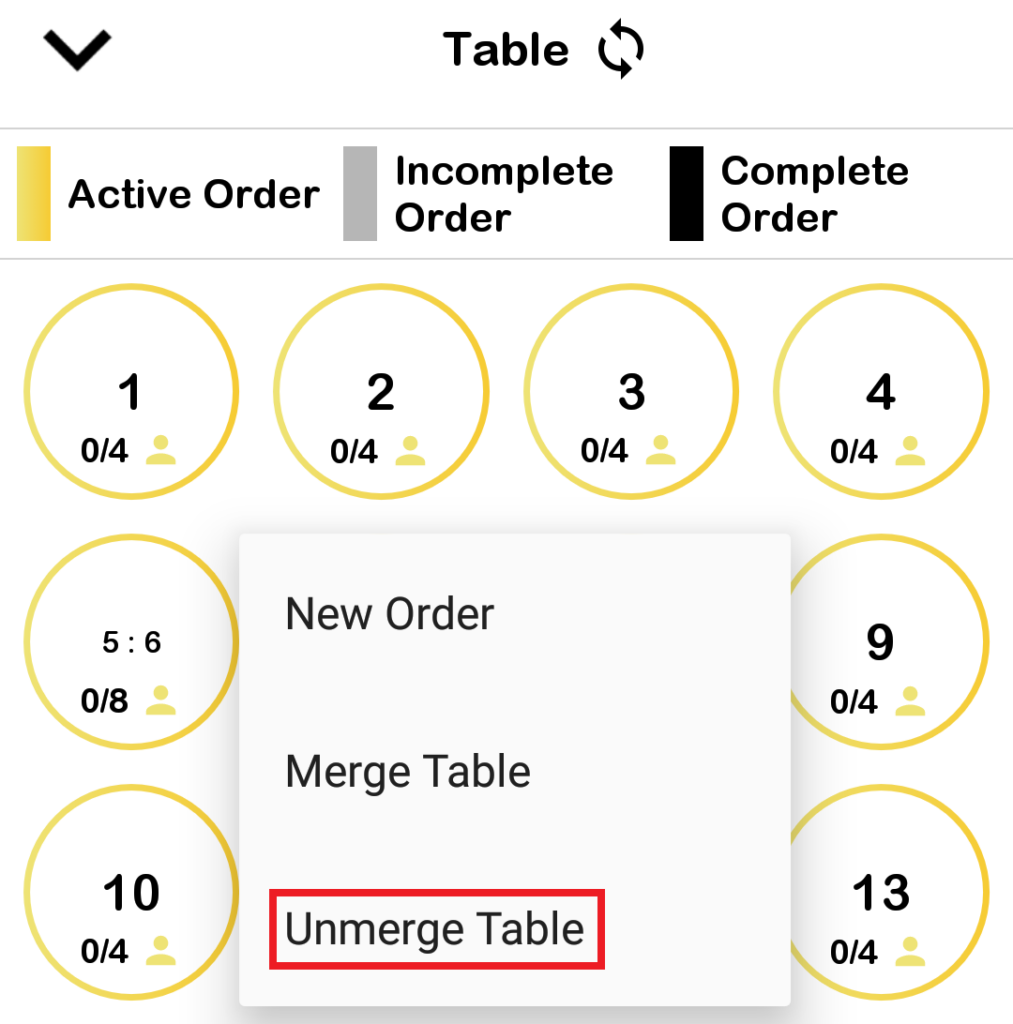
- To unmerge empty table, head to the list of tables page.
- Click on the table to be unmerged, select ‘Unmerge Table‘ via the dropdown menu.
How to Change Table?
Change Table can be done in 2 ways.
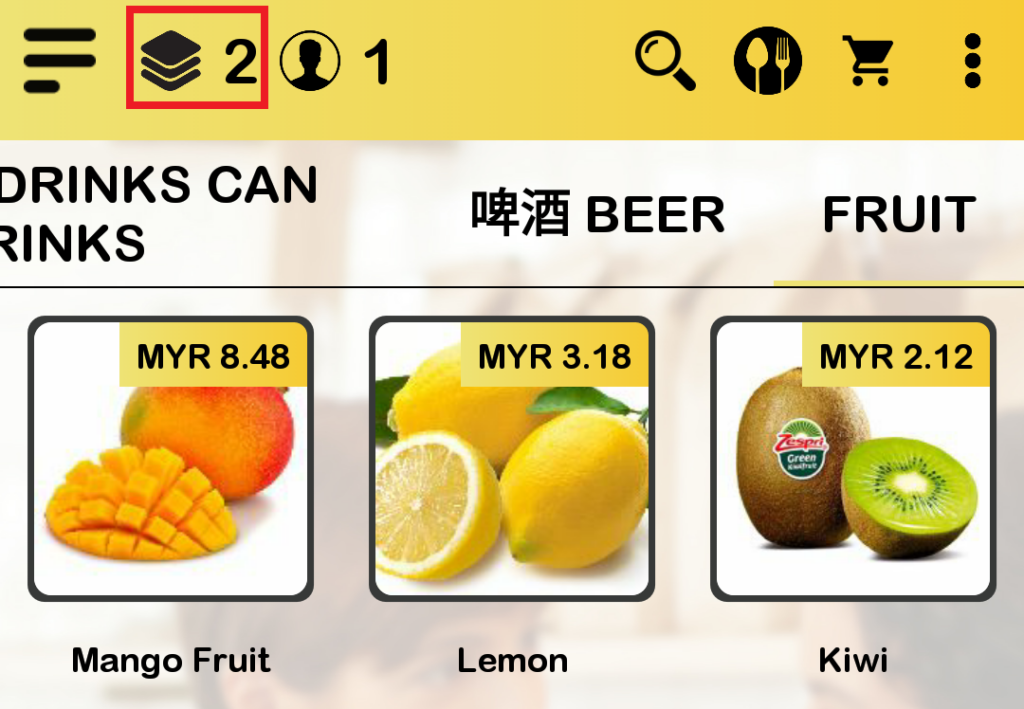
- The FIRST way can be achieved when the user currently has an opened table in the main menu.
- Clicking on the table icon redirects user to the list of tables and from there the table can be changed to the user’s choice.
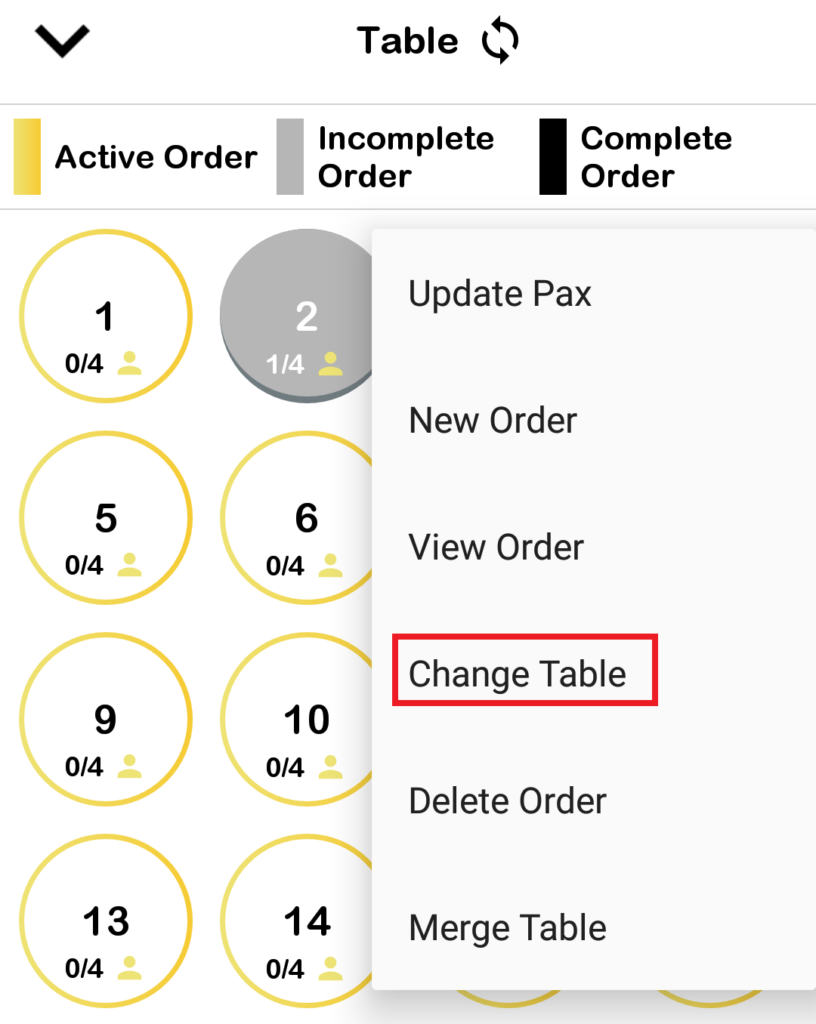
- The SECOND way can be done by changing the table within the list of tables menu.
How to Update Pax?
Similarly, update pax can also be done in 2 ways.
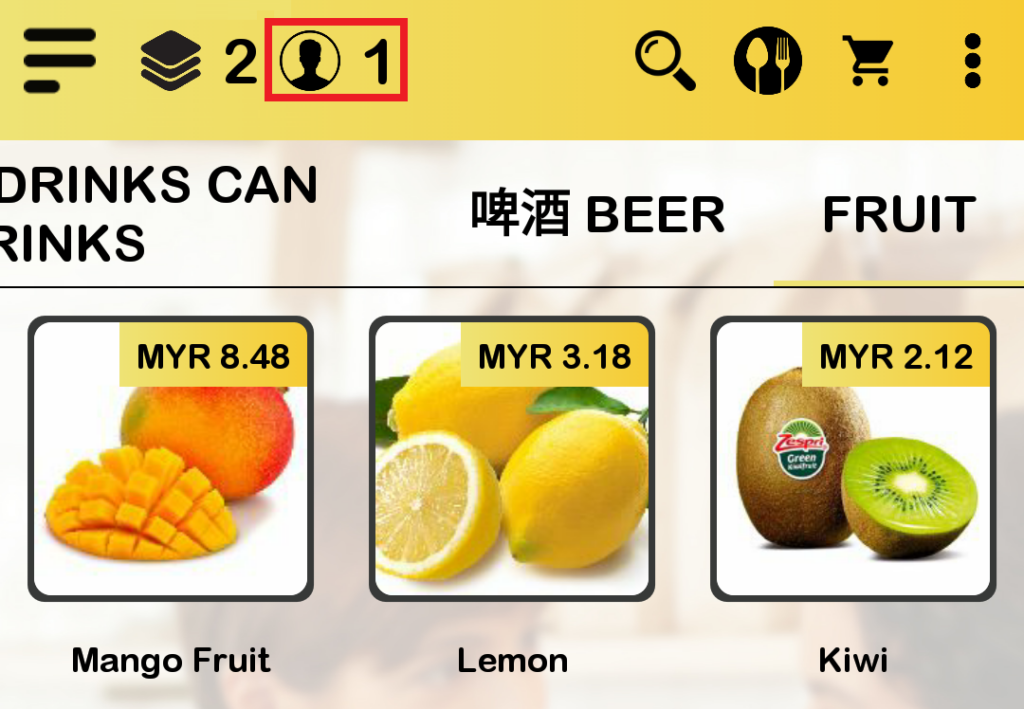
- The FIRST way can be achieved when the user currently has an opened table in the main menu.
- Clicking on the Human icon will prompt the Pax input and therefore pax amount can be changed from there.
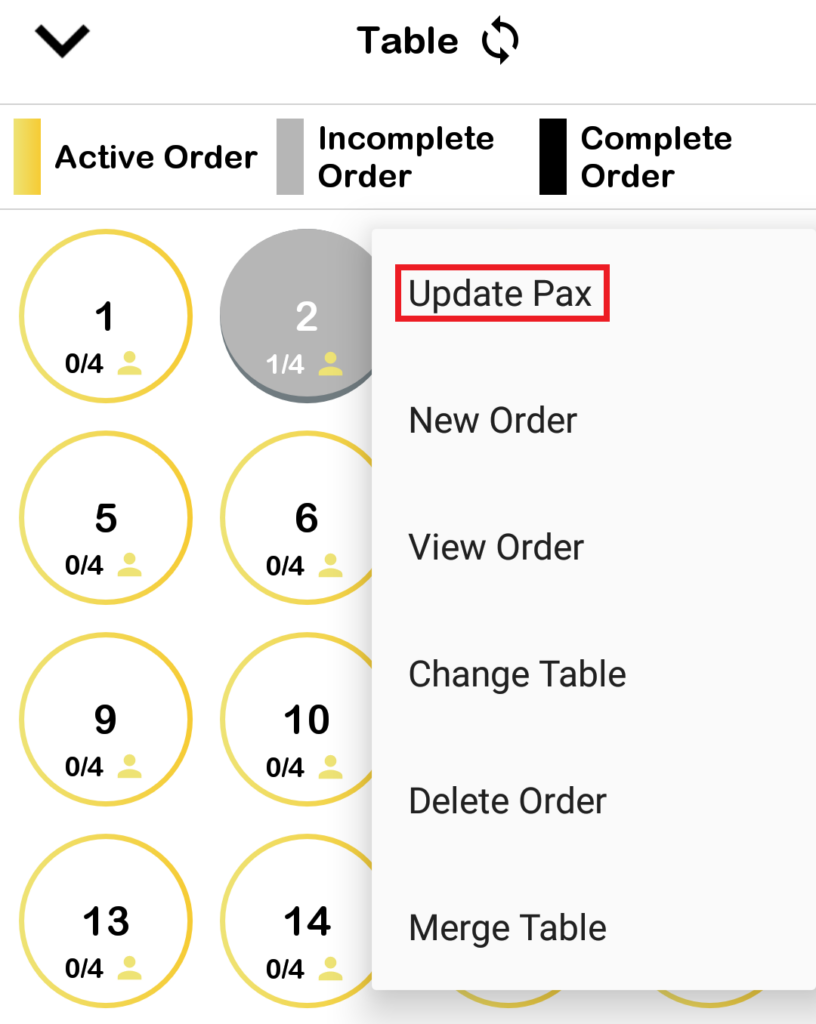
- The SECOND way can be done by modifying the Pax amount within the list of tables menu.
How to Delete Table?
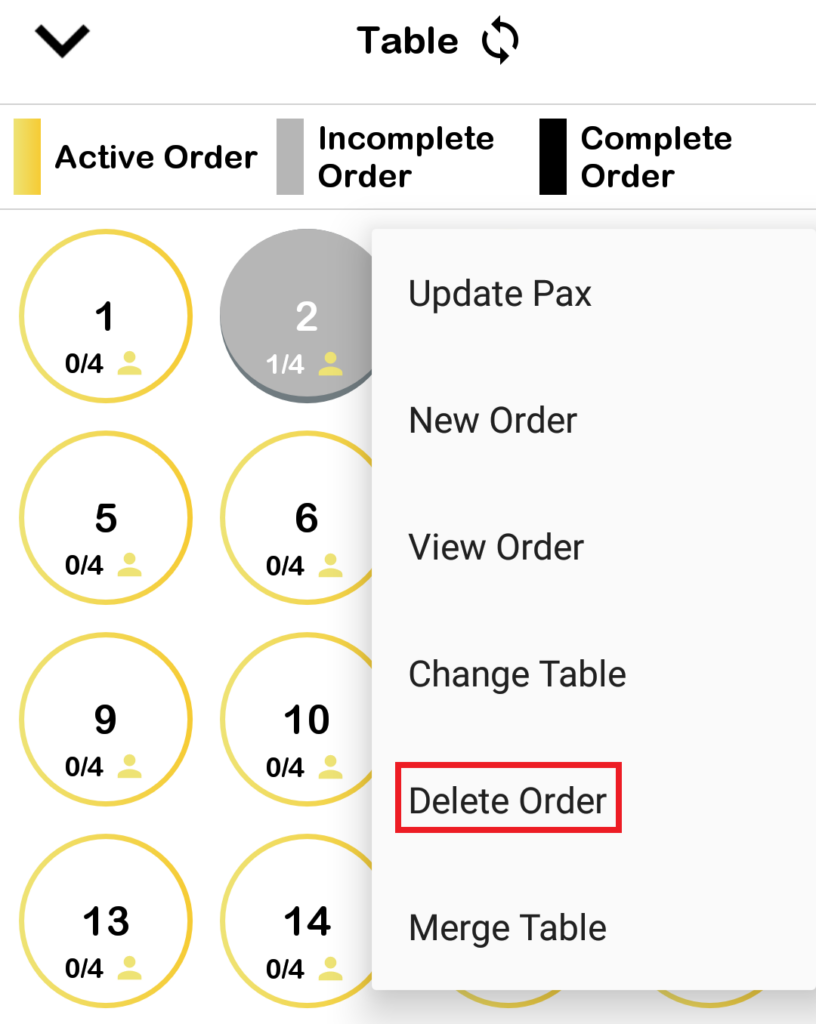
- To delete an order/table, first open the list of tables page.
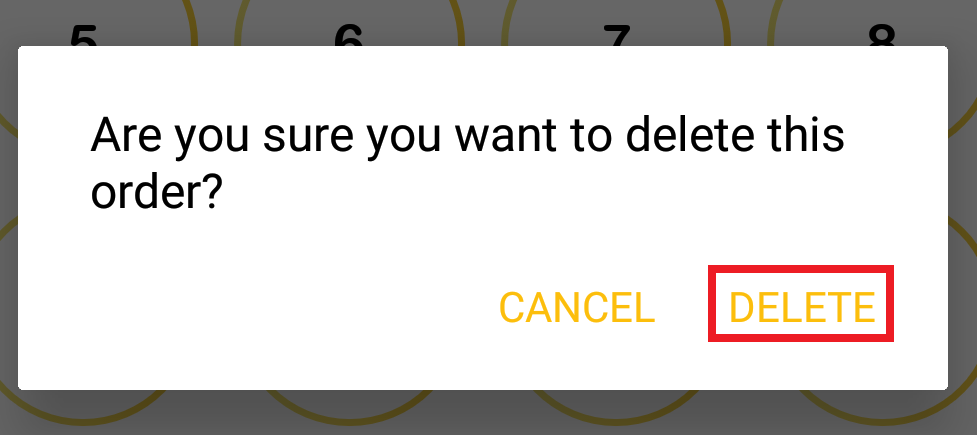
- From there, click on an opened table and click on ‘Delete Order‘ from the dropdown menu.
- Click on ‘Delete‘ to empty the order/table.