How Can We Help?
BIG Waiter – Send Transaction
Introduction
Send transaction is one of the main features of BIG Waiter which is used to notify the host on BIG POS Pro that an order is ready to be processed further such as payment. This section introduces how to send transactions using the BIG Waiter app.
Prerequisite for Using Send Transaction
The host (BIG POS Pro) must be connected to a printer to use this feature. This is because a printer is needed to print the order sheet and order summary once the BIG Waiter send a transaction. For more information related to printer, refer to Setting up Printer section.
How to send Transaction?
To send a transaction, follow the following steps:
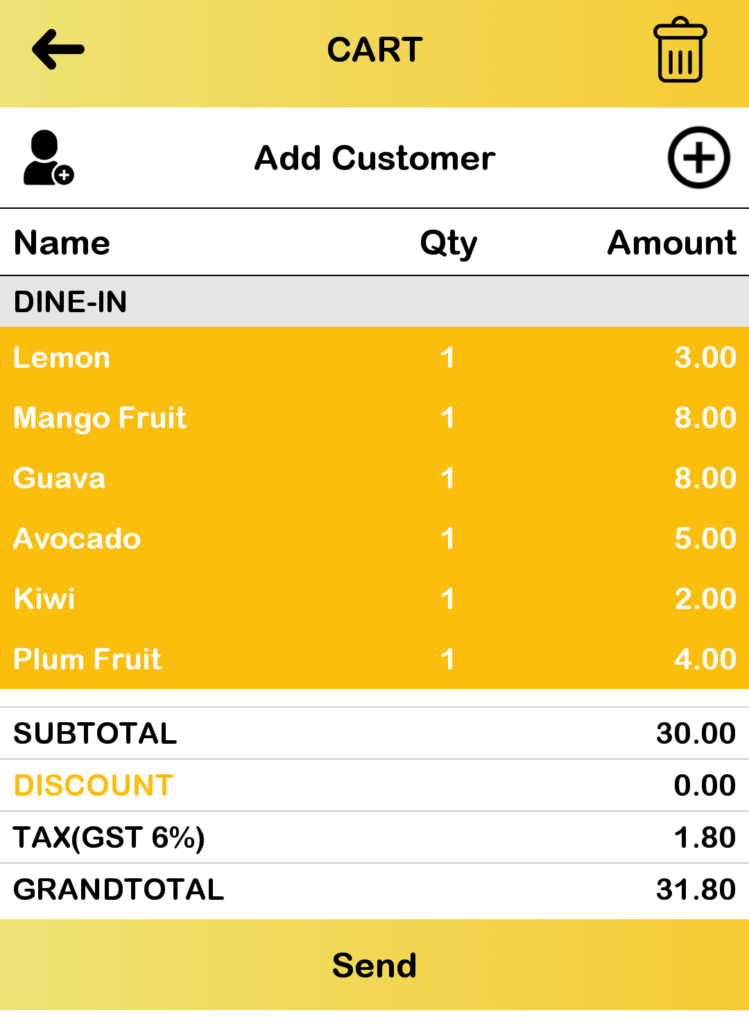
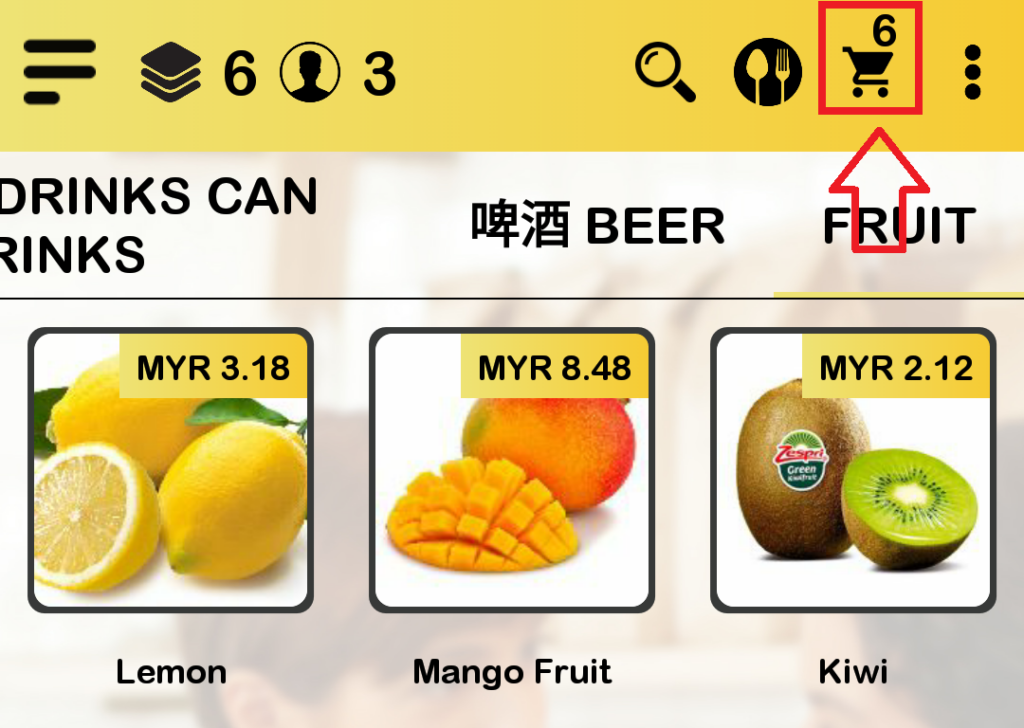
- After opening a new order and adding items into the cart, proceed to view the cart.
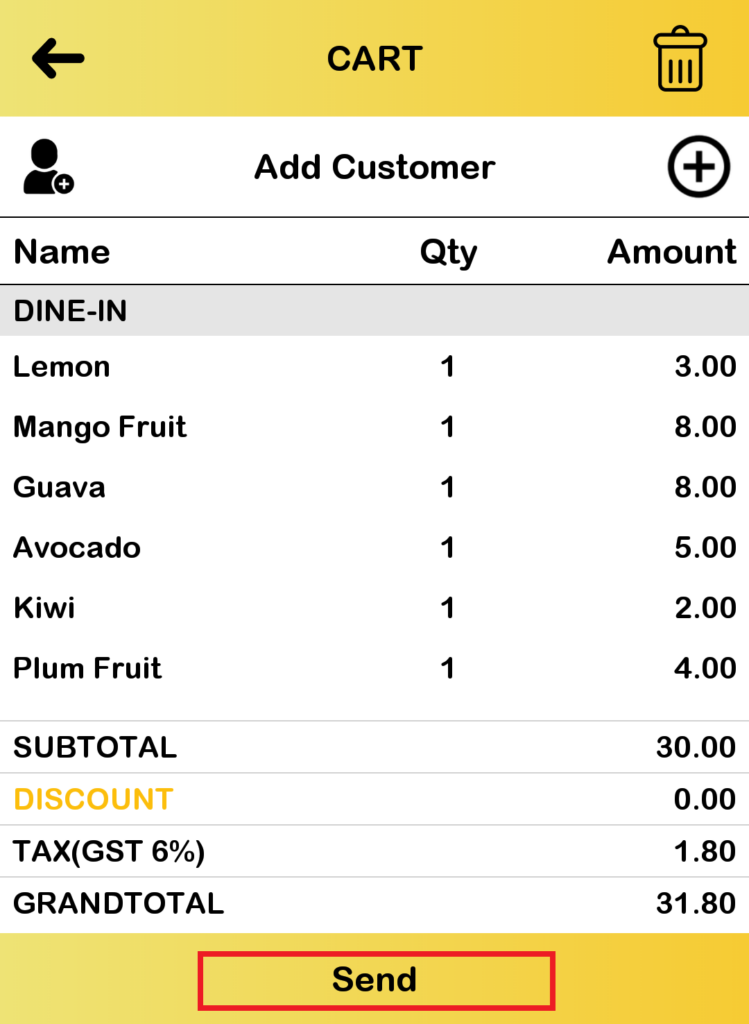
- Below the cart section, click on the ‘Send‘ button to send the transaction to the host.
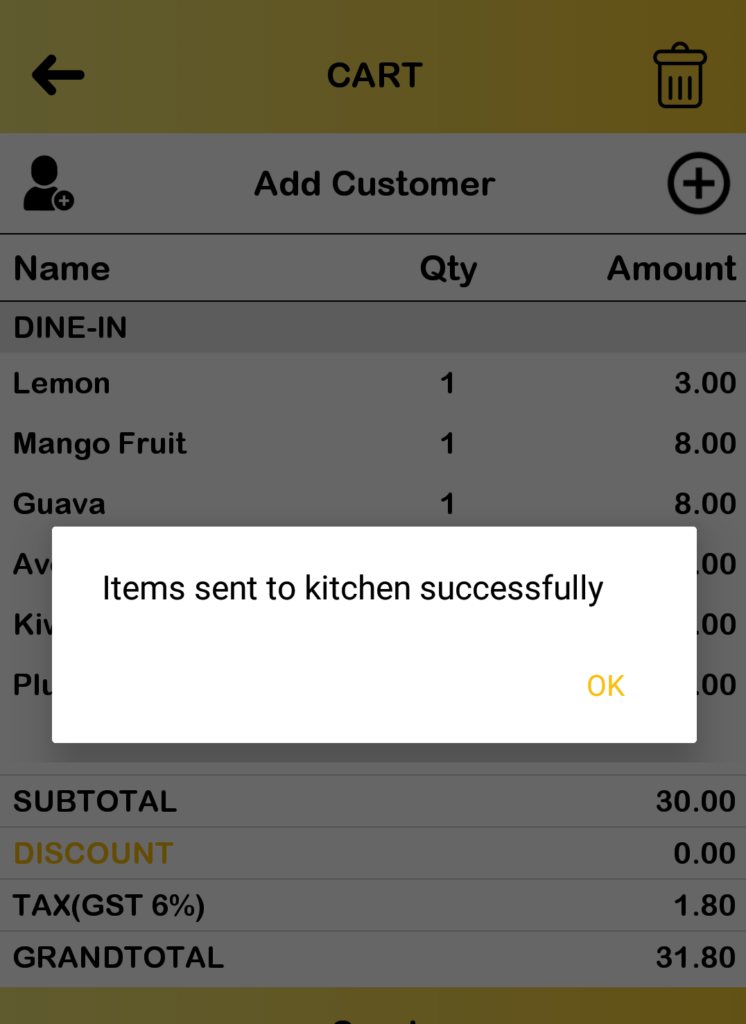
- After successfully sending, a popup message will appear to notify both BIG Waiter and BIG POS Pro regarding the sent order. The connected printer will also print the order sheet and summary.
- Note that items that have been sent will be highlighted for easier identification.