BIG Waiter – Order Lock/Unlock
Introduction
Order lock/unlock is used to ensure there is no conflict between multiple devices using the BIG Waiter and BIG POS Pro so that operations can be carried out simultaneously and efficiently. Since multiple devices using BIG Waiter can be connected to the same host, order locking prevents conflicts such as duplicating order, merging duplicated tables, opening same table twice and other sort of issues that arise due to simultaneous activities across the connected devices.
How to Enable Order Lock? (on BIG POS Pro)
Enabling order lock will enforce the restriction such that ONLY the device that opened a table has full access and permission to use that particular table while other connected devices are locked from viewing, modifying and deleting it. The table can ONLY be accessed from the host (BIG POS Pro) when the user in BIG POS Pro unlock the order on his or her side but doing so will revoke the access from the original device which initially owns the access to that table.
To enable order lock, follow the following steps:
- Open the settings within the Pro app.
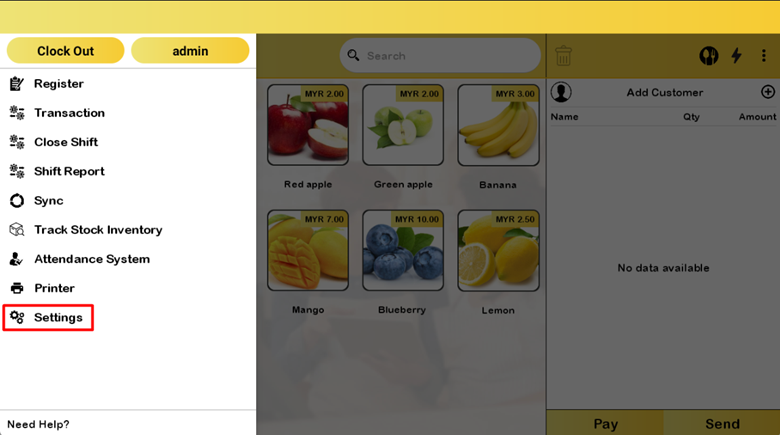
- Turn on the ‘Table Locked or Unlock’ feature under the General section of Settings.

Example of Order Lock
Below is an example of how order lock works. This example contains 2 different devices that use BIG Waiter to connect to the same host.
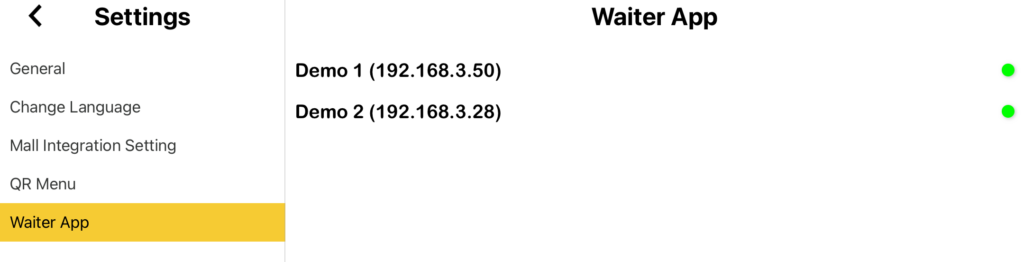
- In this example, waiter from Demo 1 will be creating a new order in Table 1. Hence, Table 1 will be locked by Demo 1 and other devices are prevented from accessing Table 1.
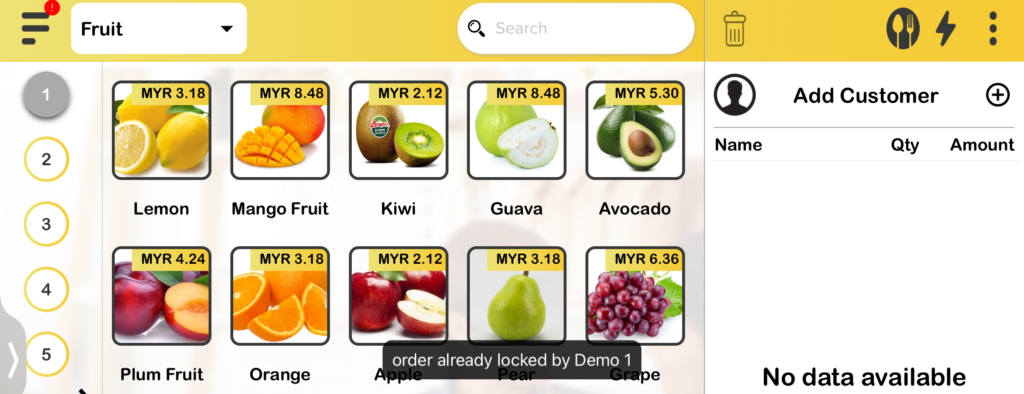
- Upon accessing Table 1 from Demo 2, the following message appears and the user cannot access the table.
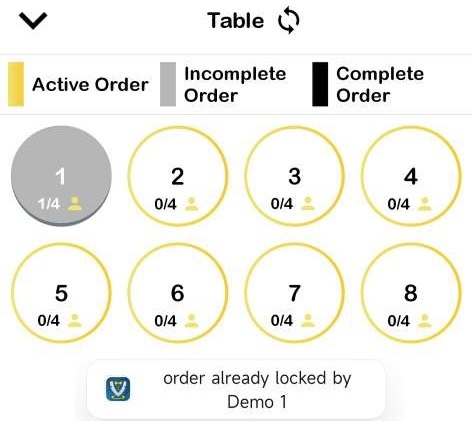
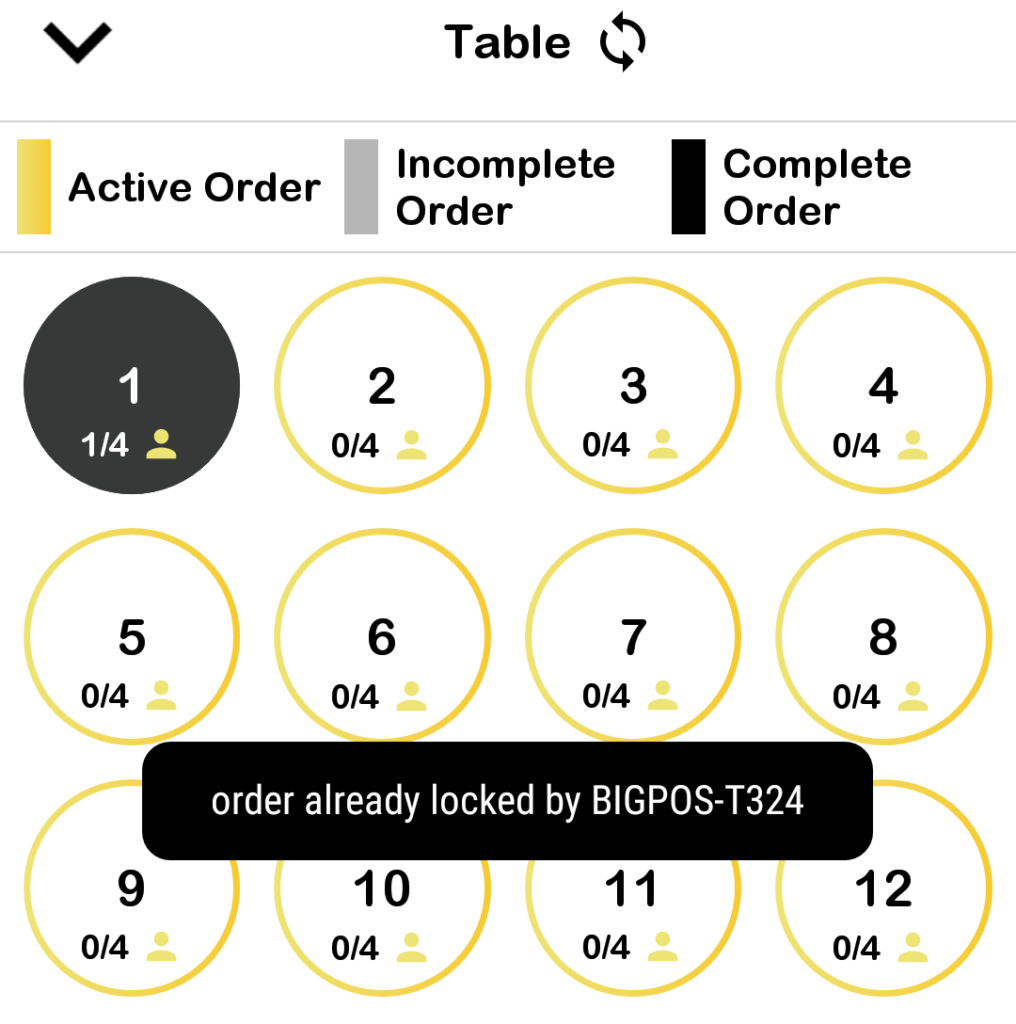
- The same happens to the host which is also prevented from accessing the table.
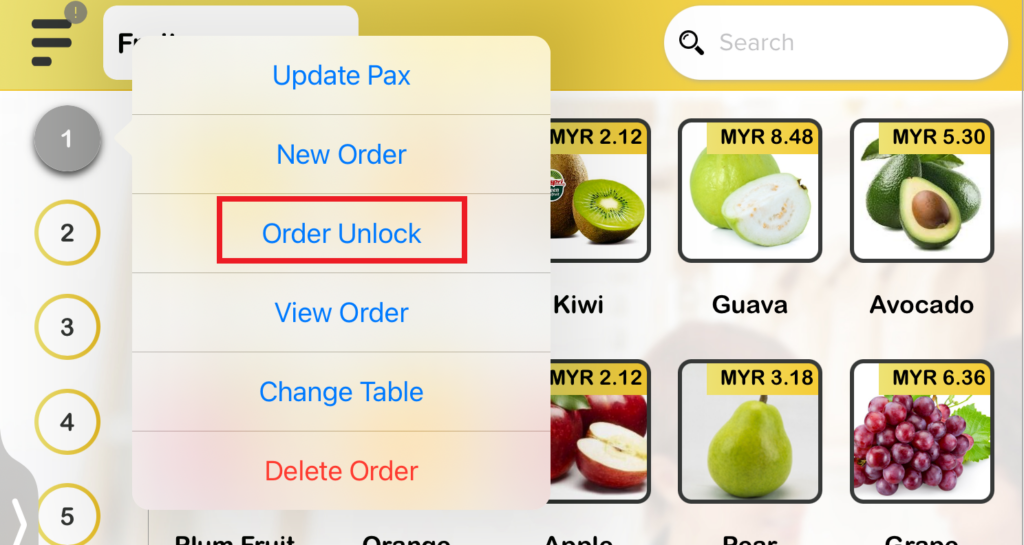
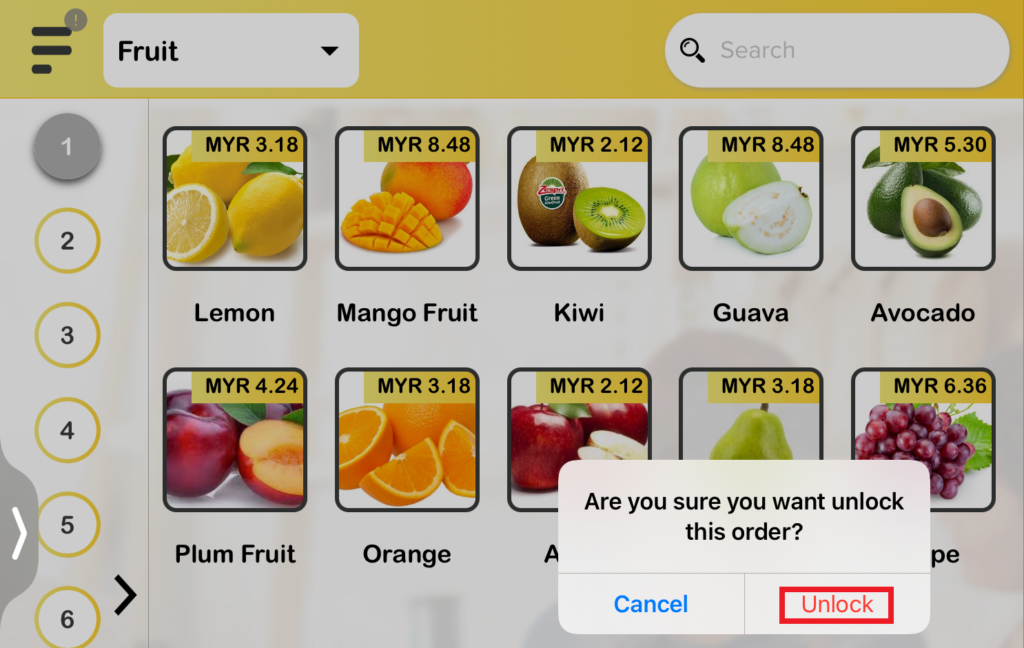
- Only after the order in Table 1 is finalized from the Demo 1 user, then the BIG POS Pro user can proceed to select ‘Order Unlock‘ to access the table.
- After unlocking the table, the BIG POS Pro can continue with payment while the other devices are locked from accessing the table again since it is now limited to BIG POS Pro. Demo 1 lost access to Table 1.