BIG Waiter – Add Customer
Introduction
By adding customer into a transaction is to save a record especially for loyalty program to gain insights of customers’ retention, redeemed cashback, earned points and average spend. Besides, the merchant can easily send an invoice to the customer based on their registered email address.
How to add customer?
To Add Customer into a transaction, follow the following steps:
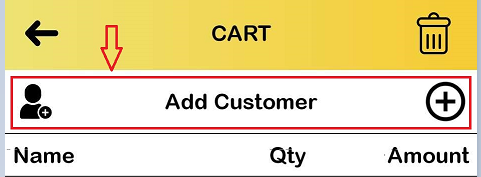
- Tap on ‘Add Customer’ in cart page.
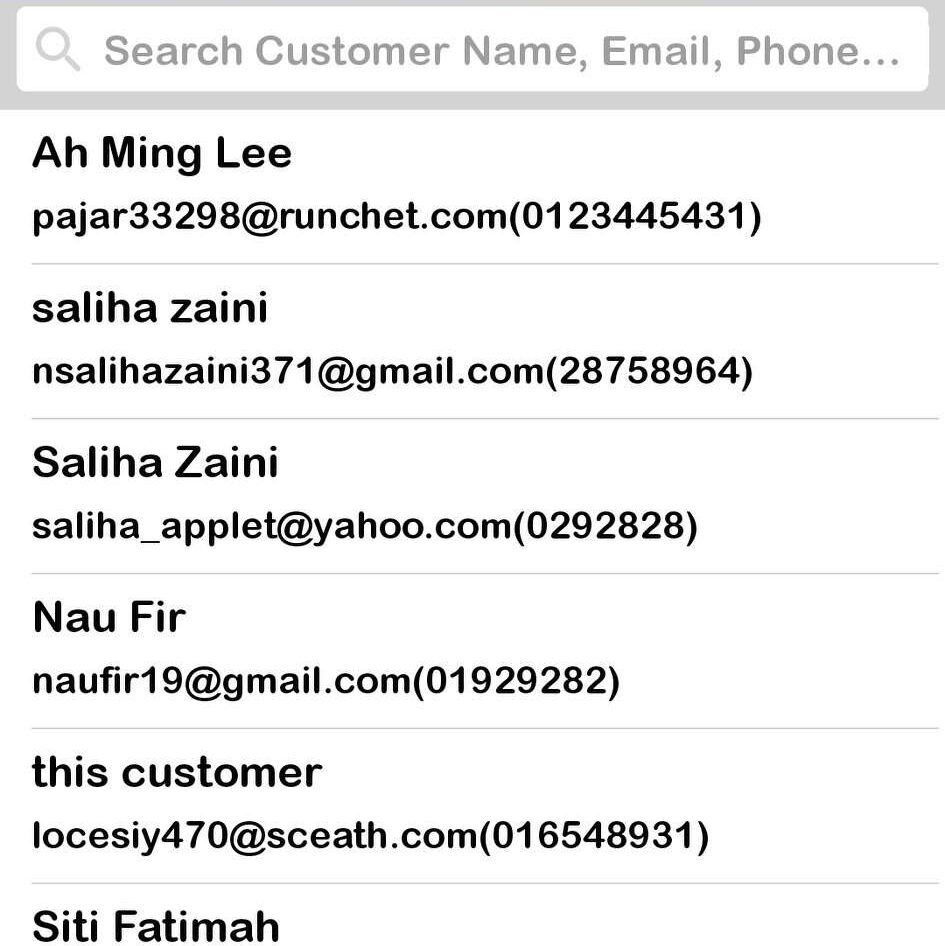
- Tap on any name to choose from the list to add customer into a transaction.
- Search box is used to search for customer using their names, email or phone.
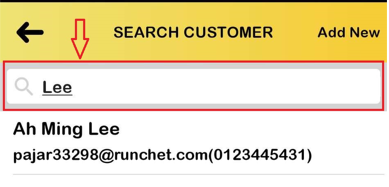
- Tap on the names and customer will be added.
Transaction might need to add a new customer. Hence, Add New customer features is available on BIG Waiter app.
How to add a new customer?
To add a new unregistered customer, follow the following steps:
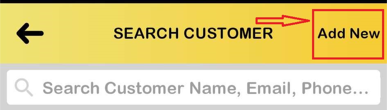
- Tap on ‘Add New’ on the top right corner of the Add Customer interface.
- Fill in every required details marked with an asterisk, * sign.
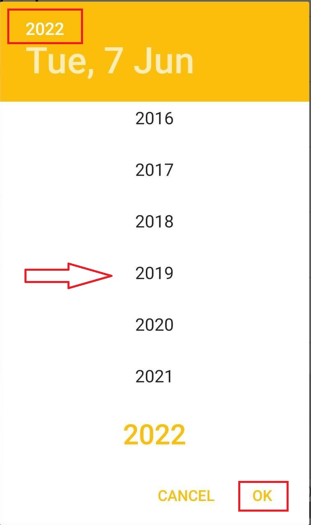
- For Birth Date section, choose customer’s birth date from the calendar.
Select year of birth from the ‘Year’ section and scroll through the list to the correct year.
Click ‘OK’ to proceed to the next step or ‘Cancel’ to return to previous step.
- Section with no asterisk, * sign is not necessary to fill in details.
- Tags is membership details such as Silver, Platinum.
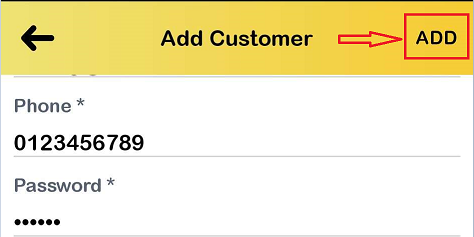
- After filling in all the details, click ‘ADD’ on the top right corner.
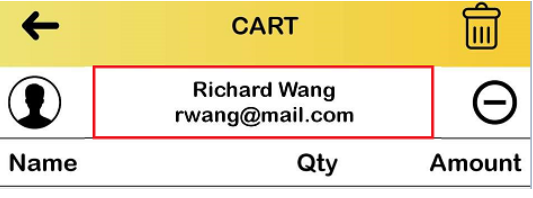
- Customer’s name will be showing on ‘Add Customer’ section.
How to remove customer?
To remove customer from a transaction, follow the following steps:
- At the cart page, tap on the ‘-’ sign on the right side of customer name section.
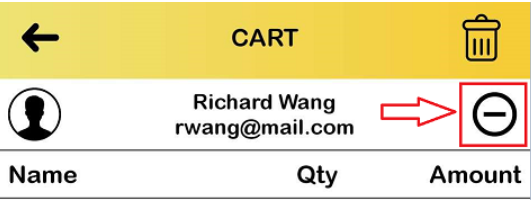
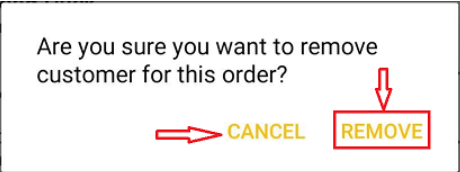
- A message will be prompted to ask the merchant if they want to perform this action to remove the customer, click ‘Remove’ to confirm or ‘Cancel’ to keep the customer in this transaction.