BIG IoT
BIG IoT Smart Booking system is new features that equipped with sensors, software, and connectivity, allowing them to collect and exchange data. Then the data will send the signal to devices to operate accordingly to the setting. For initial BIG IoT features, we will focused on the court booking for sports usage where user can simply use the app or also can walk in to the merchant for court booking. After booking successfully made, B Reward app user can simply click on ‘Check – In’ button to switch on the court lighting once reach the selected time. To summarize the flow, please refer below flowchart for rough idea on this feature.
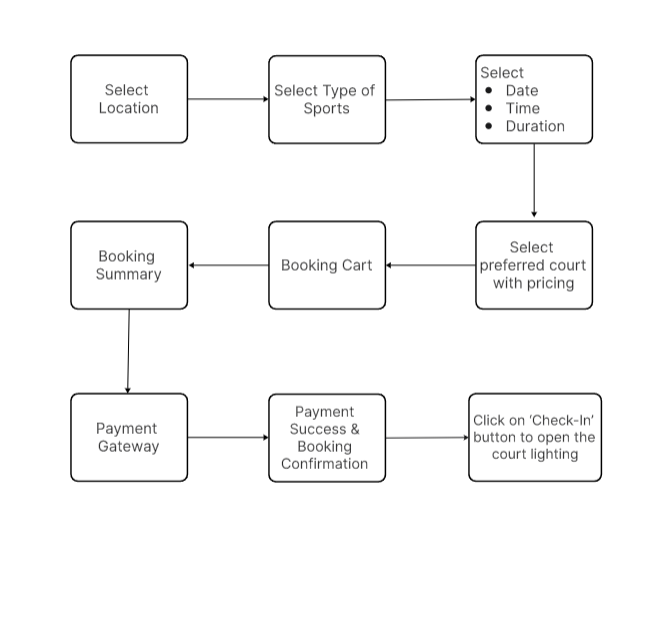
Booking made Through B Reward App
- Login through B Reward apps
- Member user can just sign in to proceed for booking. If user would like to continue as guest to make a booking for court/field, when they press on the button on the login page it will redirect to Location Page.
- For member, once sign in will redirect to member page and user can proceed to click on ‘New Booking’.
- After click on ‘New Booking’ user will redirect to Location Page > Select Sport Page > Select Booking details page
- On Select Booking details page, user is required to select
- Date: Select the date [user can select only present(today) and future; past dates are not available]
- Time: the time that prefer to book the court
- Duration: how long they want to book the court
- The available courts on that particular date, time and duration with the total price based on the duration. [able to scroll if there is more court is available]
- The total Court Selected will show in the cart at the bottom of the page
- By pressing on the Cart button it will redirect next page where it will show the cart summary on the “My Booking Cart” page
- On the booking cart, the user can cross-check the booking details before proceeding to the payment page.
- Add another booking: if they would like to book for another session they can just add it from this section.
- Bin: click bin icon to remove the selected court & time slot
- If it’s good to go the user can press the checkout button
- After press checkout button, if user is guest user, compulsory toast message that ask user to Sign In and Sign Up will prompted out. But if user is a member who has been sign in early, they can proceed to Checkout page.
- In Checkout page, user can proceed to click ‘Proceed to Payment’ and page will redirect to payment gateway page.
- Once payment successful, ‘Your Payment was successful’ page will prompted out and user can view their booking by clicking ‘View my booking’ button
- But if payment unsuccessful, ‘Payment Failed’ page will prompted out and user also can view their unsuccessful booking and need to click ‘Pay Now’ button to complete the transaction again.
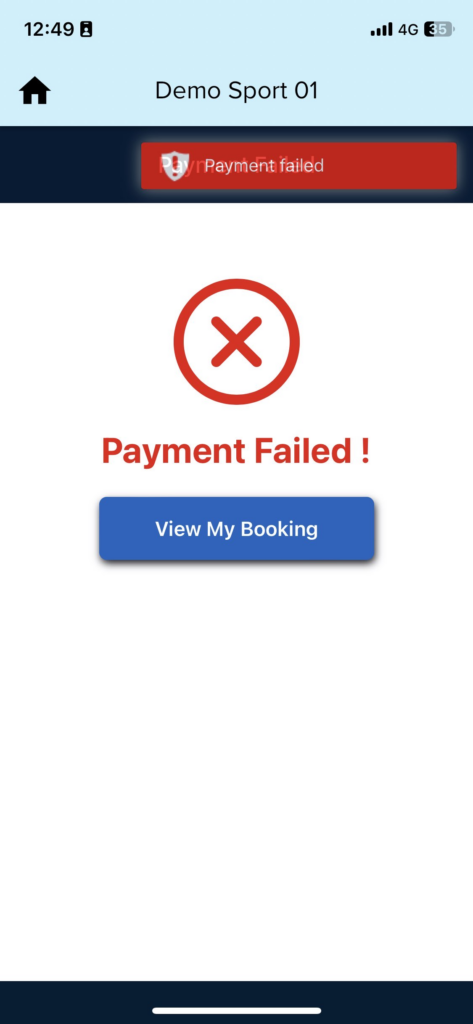
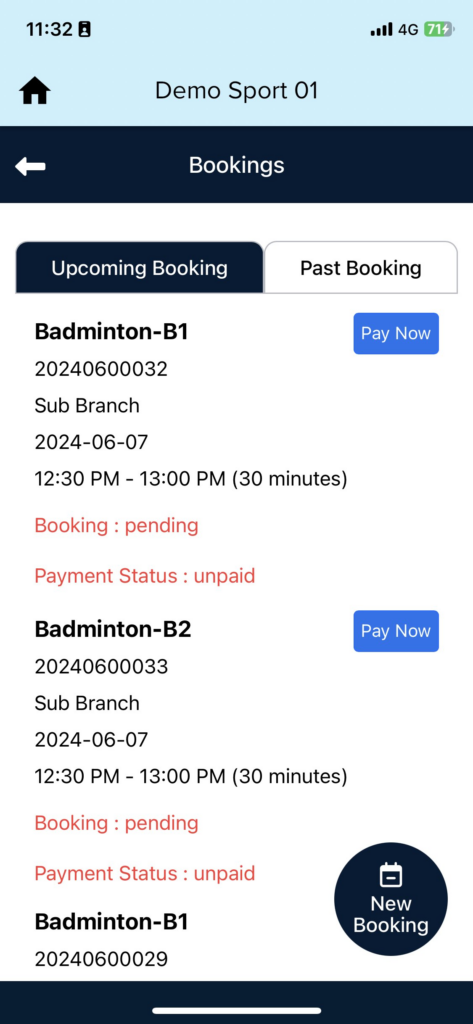
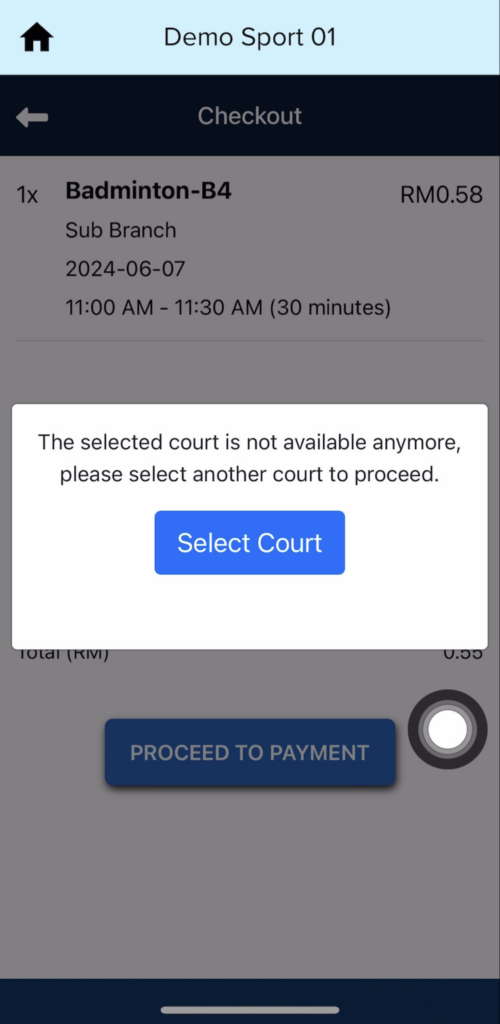
11. For the condition where the court already booked by other customer while made the booking, the toast message that informed the court has been booked will be prompt out once user click ‘Proceed to Payment’.
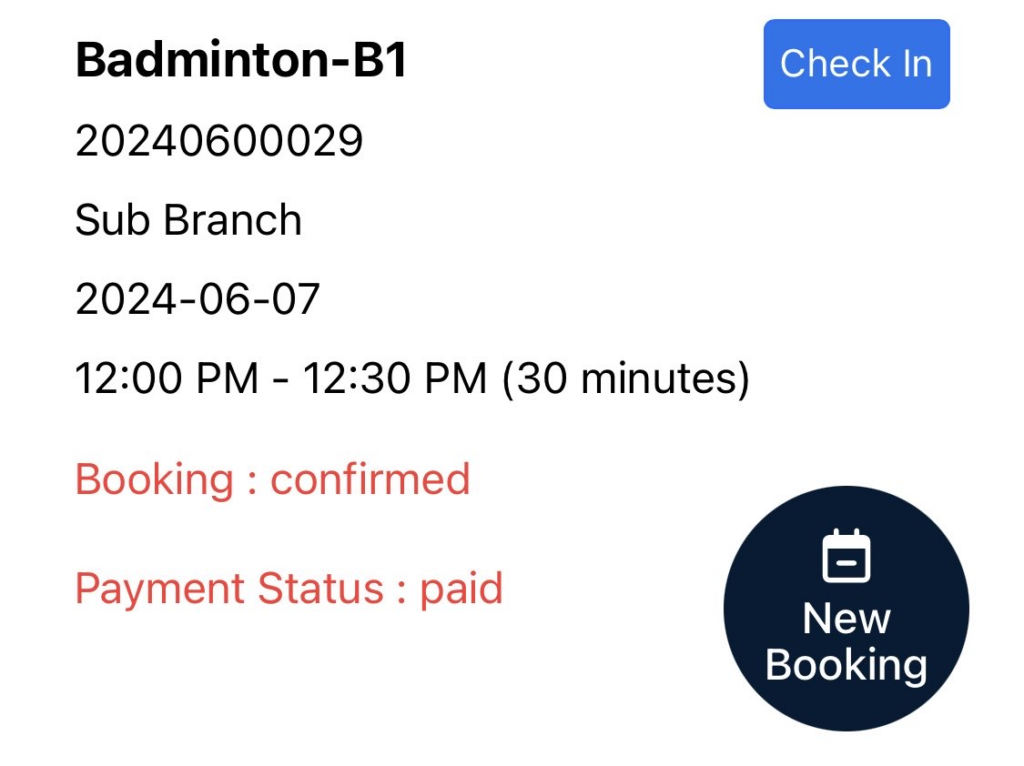
12. For the successful booking, once the timing reach the assigned time, ‘Check – In’ button will appear and user can click that button in order to switch on the court lighting. (notes : ‘Check-In’ button will appear 5 minutes before the booking time, but if click the button earlier, device will not respond until the exact time reach)
Booking made Through BIGPOS App
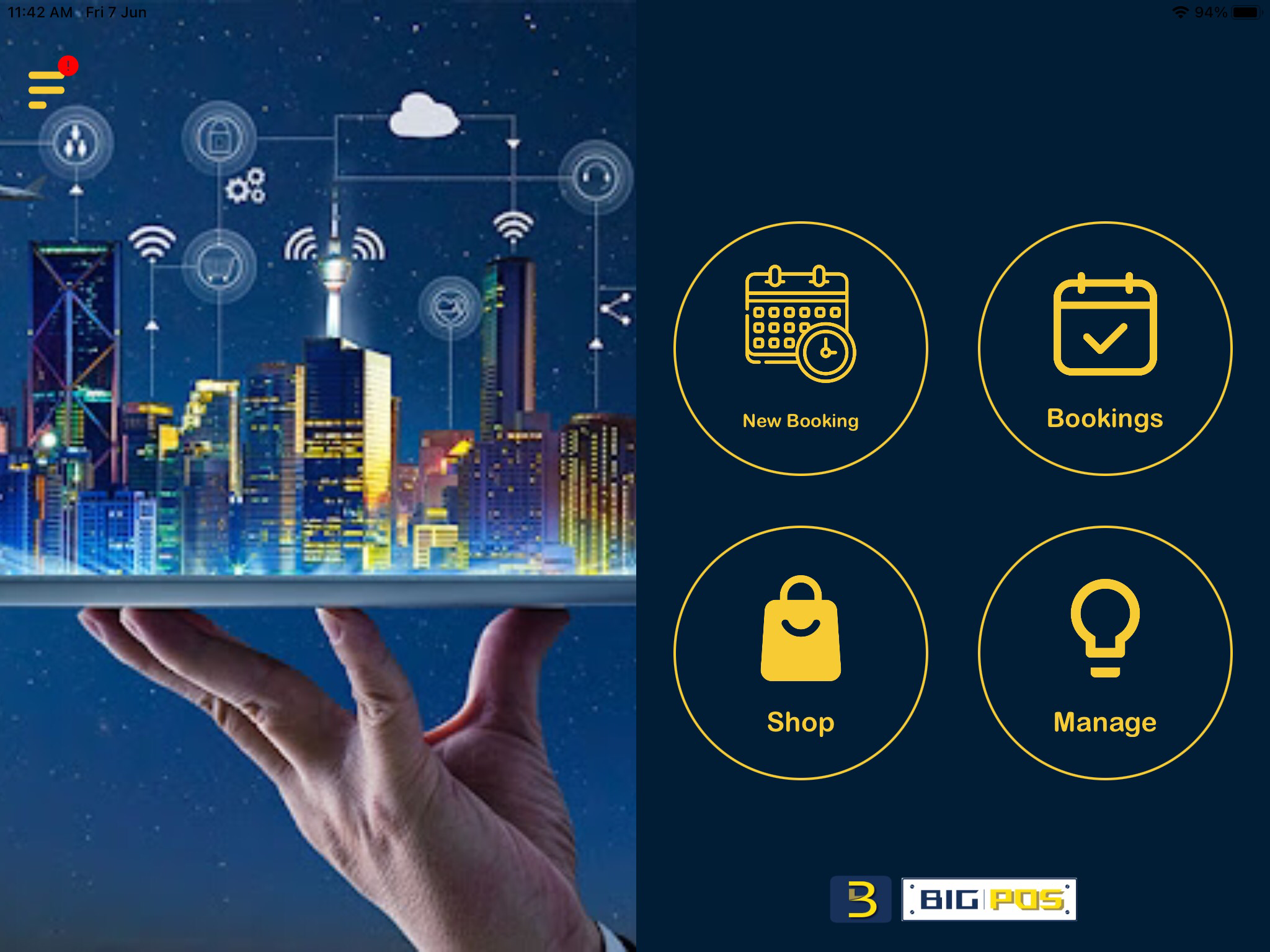
- For BIG IoT Pro apps, the homepage will be like this :
- For New Booking purpose, user can choose ‘New Booking’ option and enter these details
- Date: Select the date [user can select only present(today) and future; past dates are not available]
- Time: the time that prefer to book the court
- Duration: how long they want to book the court
- The available courts on that particular date, time and duration with the total price based on the duration.
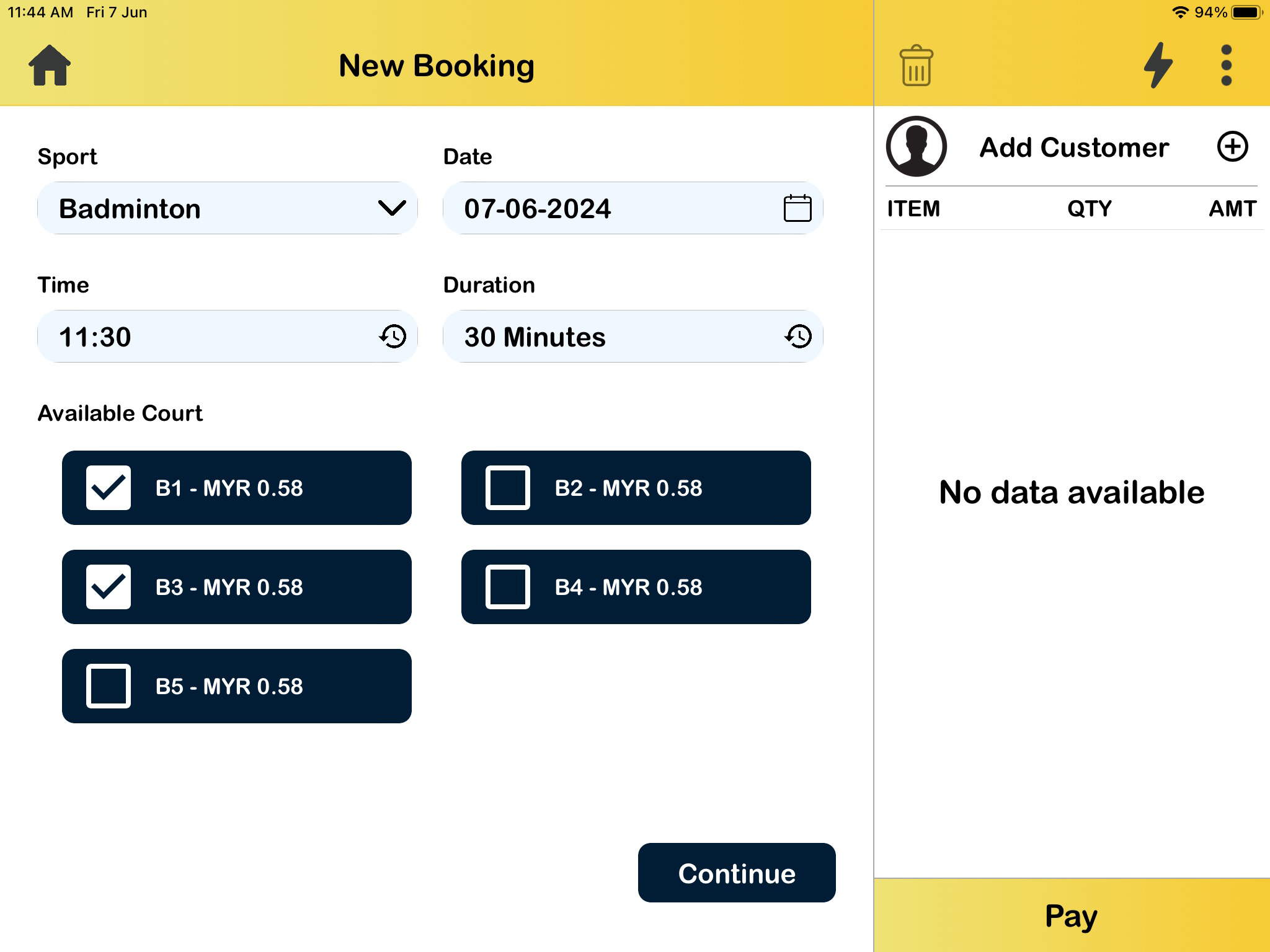
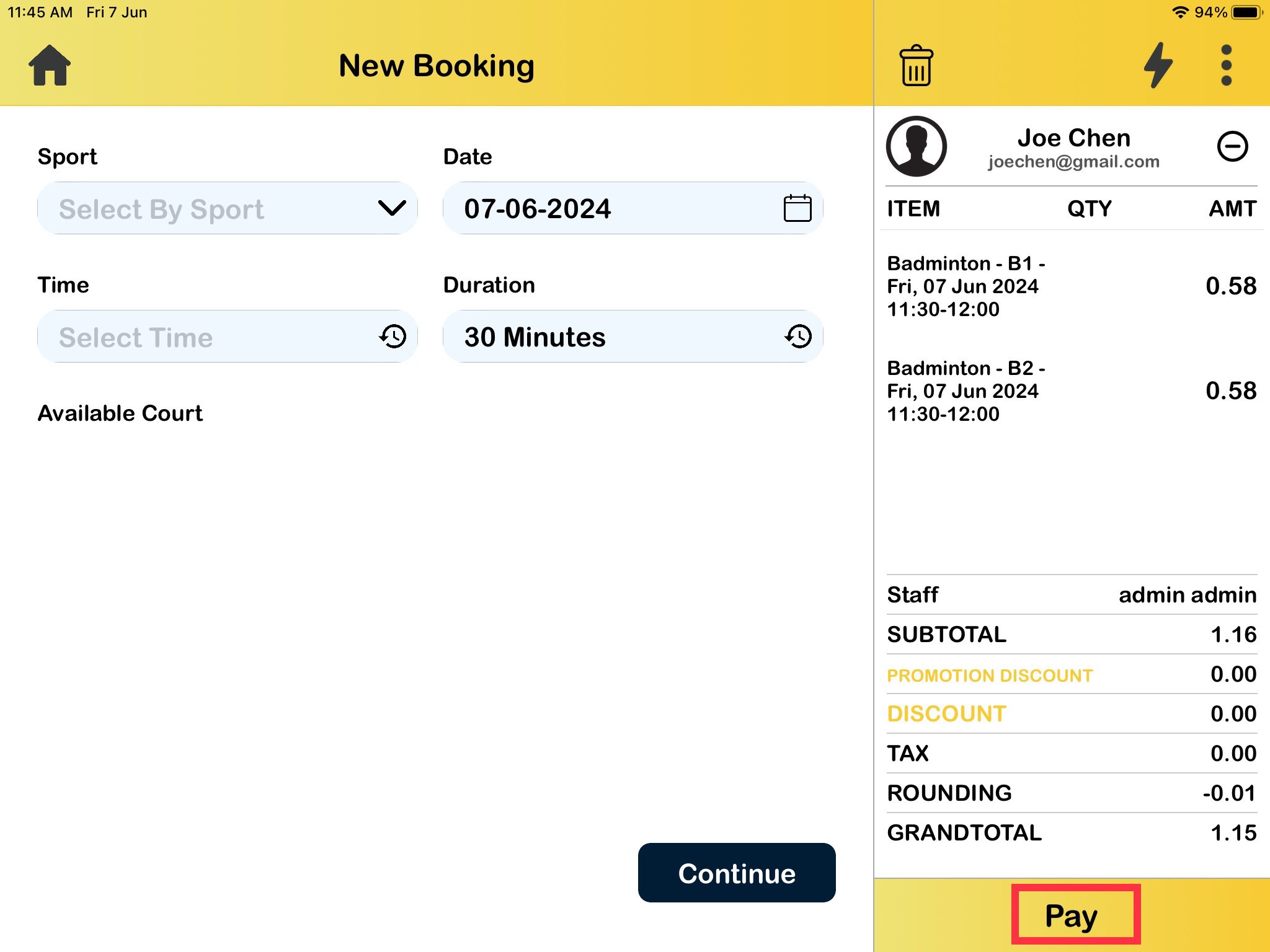
- After make the selection, click ‘Continue’ button to proceed. In order to proceed, assigned customer need to be add to continue the booking. If customer not yet added in the cart, pop out message that alert user to add or sign up customer will prompt out.
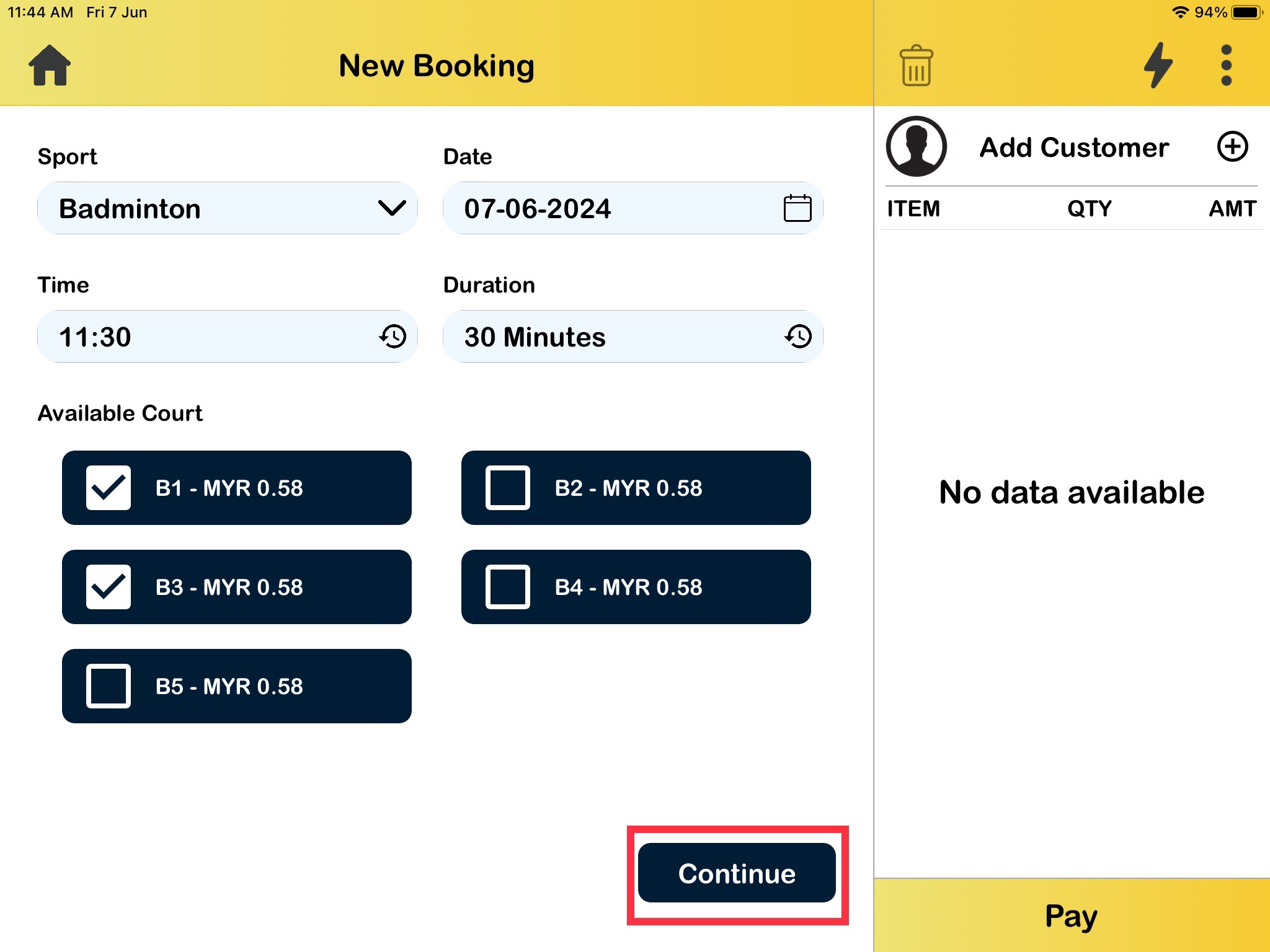
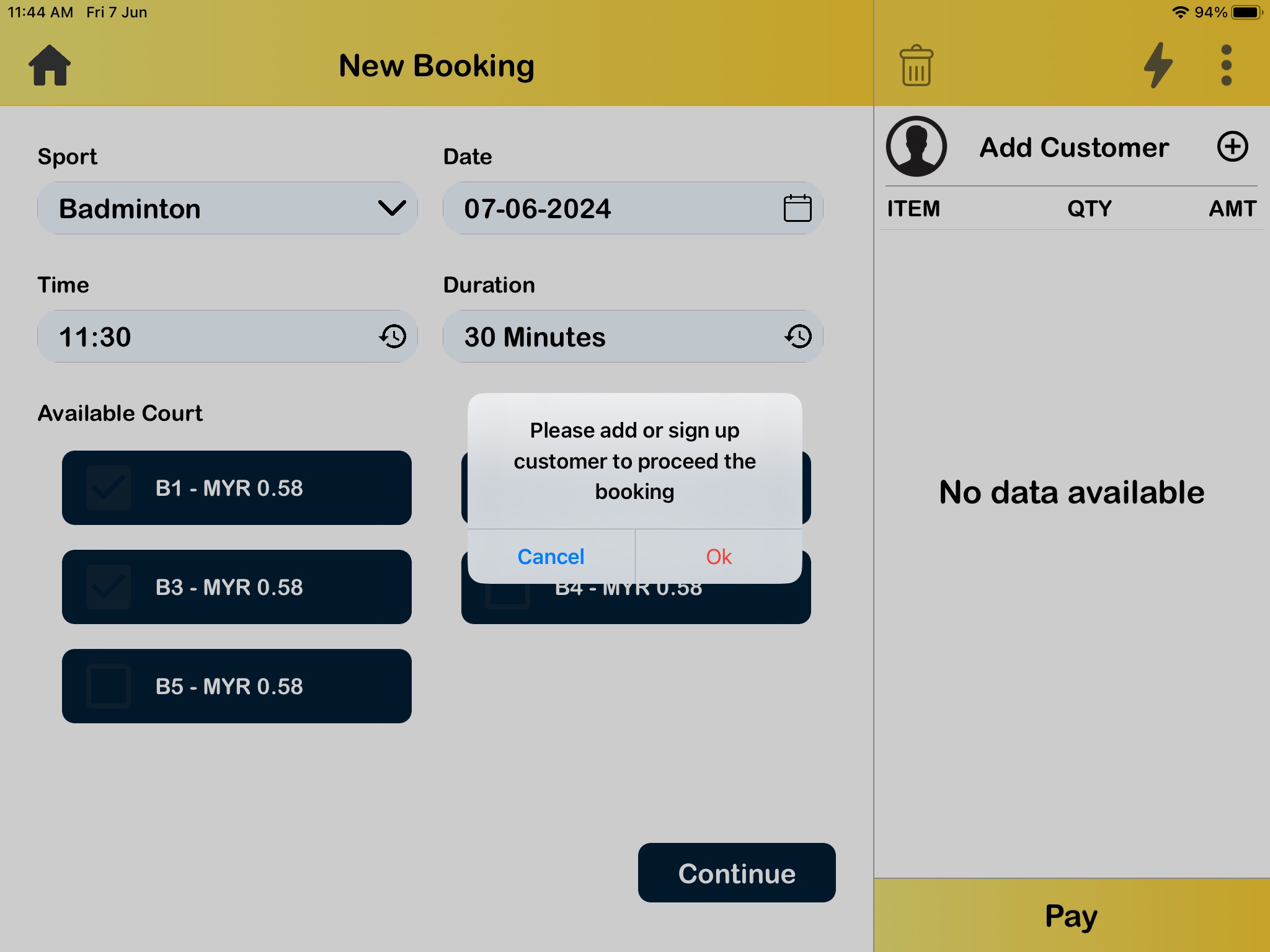
- Once confirmed, customer may click ‘Pay’ and proceed the payment.
- To check either the court have been booked or not. User can click on ‘Bookings’ > On Court Availability page, Select Date and Sport > click ‘Go’ > from this page, booked court will be highlight in Red color while available court will be highlight in Green color.

BIG IoT Application
In BIG IoT application, there are four button display at the home page;
- New Booking : for user to make a new court booking
- Bookings : to assist user to trace the court availability and booking list
- Shop : page for user to shop any product or merchandise available
- Manage : for IoT device control on court booking
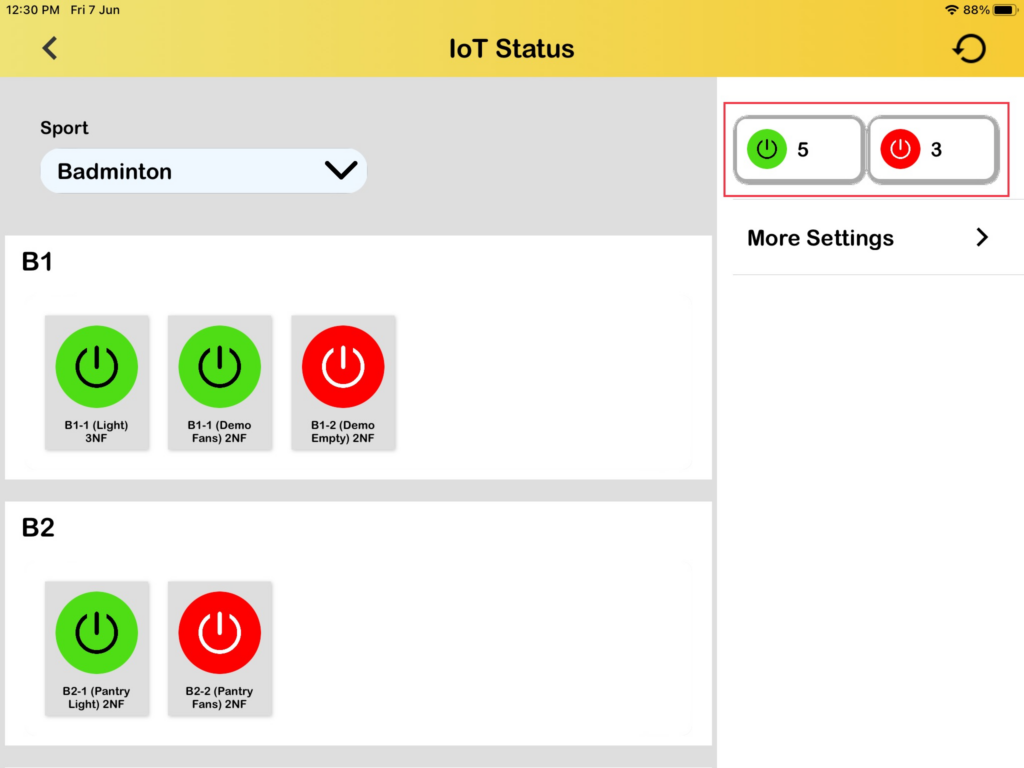
Main focus on IoT application was on Manage button. User can control the devices (lighting/fan) just by clicking any virtual switch on IoT status page ;
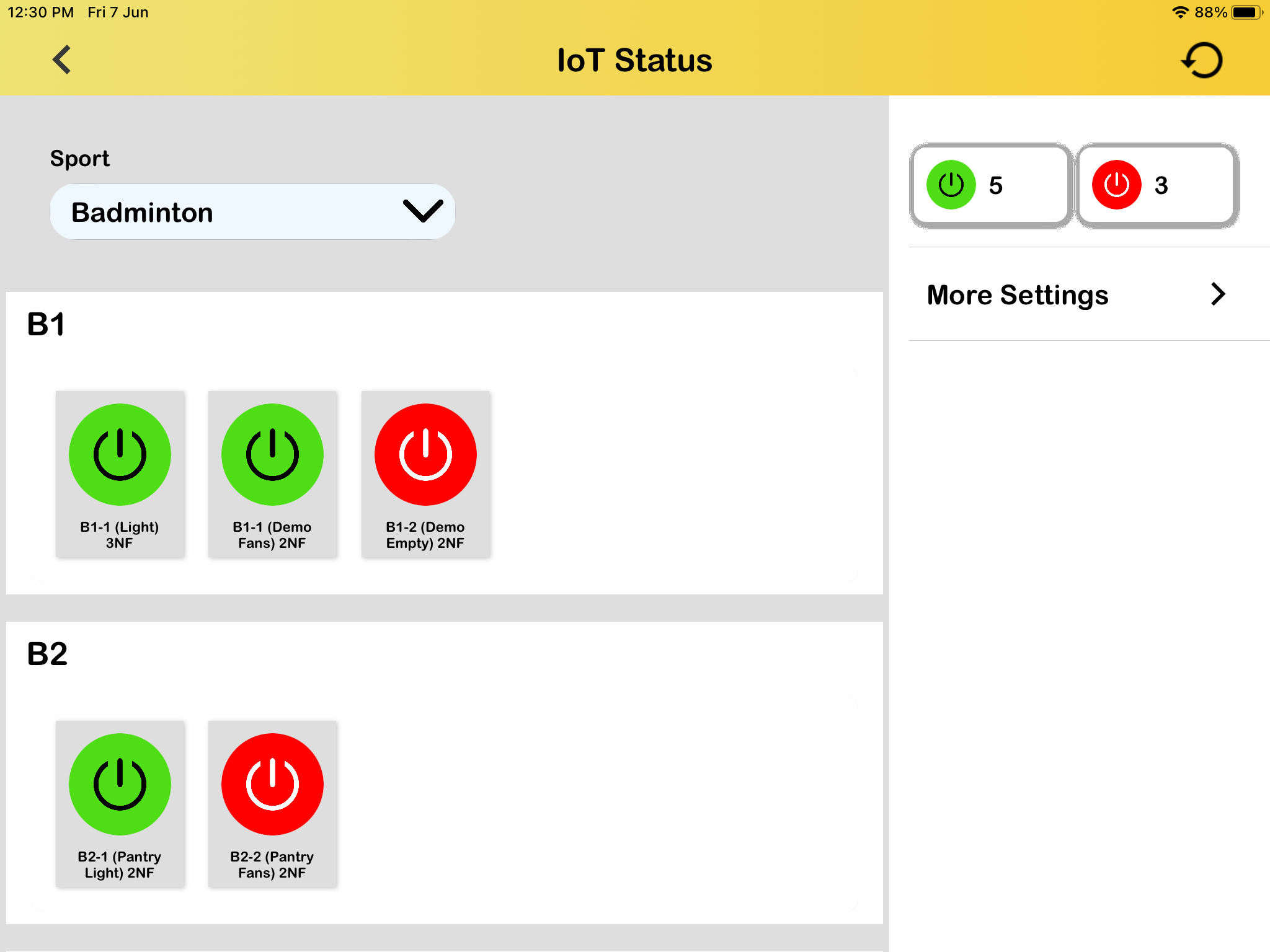
- Red switch : OFF indicator
- Green switch : ON indicator
At the upper right corner of this page is the switch to control all devices either its ON or OFF.