How Can We Help?
Australia Online Till Surcharge QR Menu Payment
Introduction
This post will guide you on how online Till surcharge QR Menu Payment works. This feature is only implementation to the Australia region only.
The application of Till surcharge QR Menu feature applied for :
- Australia restaurant account
- Rate of Till payment for QR Menu
- Visa : 1%
- Master: 1.25%
- Amex: 3%
- Diners & Discover: 0%
- Bigpos Pro Apps
How to setup AUS Till Online Surcharge
- Go to Web Admin and click on “Settings“.
- Select “Branch” and click the ‘update‘ button.
- In the QR Menu tab, fill in all the required fields. Ensure that you choose ‘Till’ as the payment method and make sure to ‘Enable’ Credit Card Charge (Surcharges) with a specified charge rate for the credit card surcharge (%).
- For Till Payment Details, make sure to fill in with valid API Key, API Username and API Password for successfully transaction.
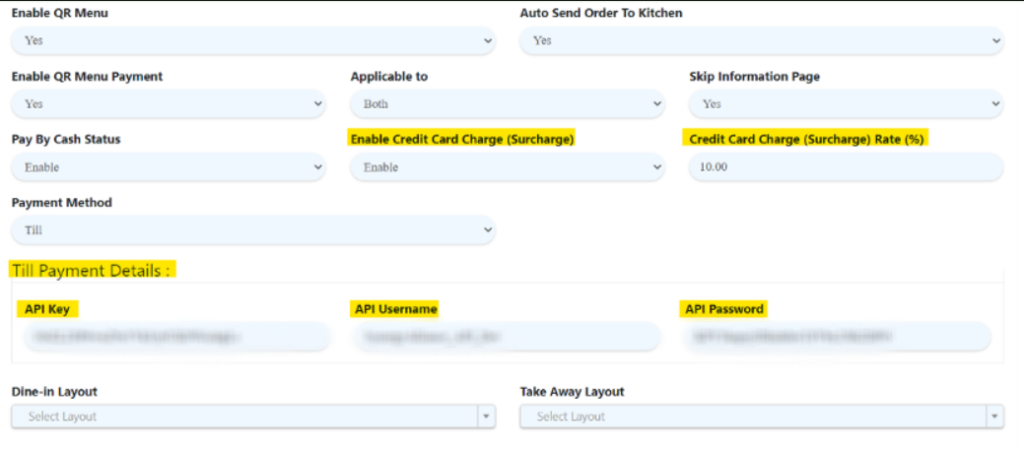
Note:
- Credit card charge settings for QR Menu is different with credit card charge in company profile (Apps).
- Credit card charge only applicable when select Till Payment
Calculation Till Surcharge
Example:
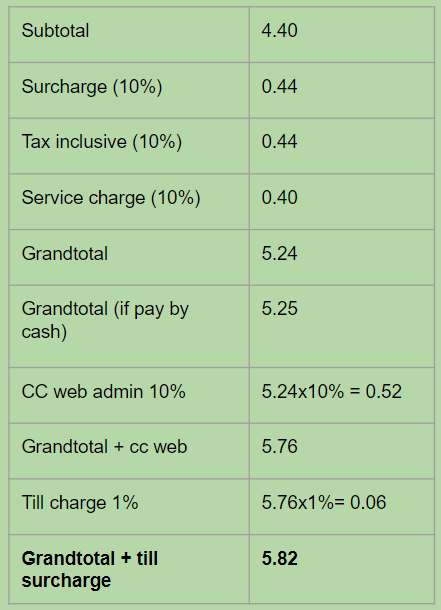
- Enable web credit card charge + Enable Till Surcharge
- Enable cash rounding, disable non cash rounding (5 cent, normal rounding)
- Enable QR Menu credit card charge = 10%
Special Scenario
When
- Enable web credit card charge
- Enable Till Surcharge
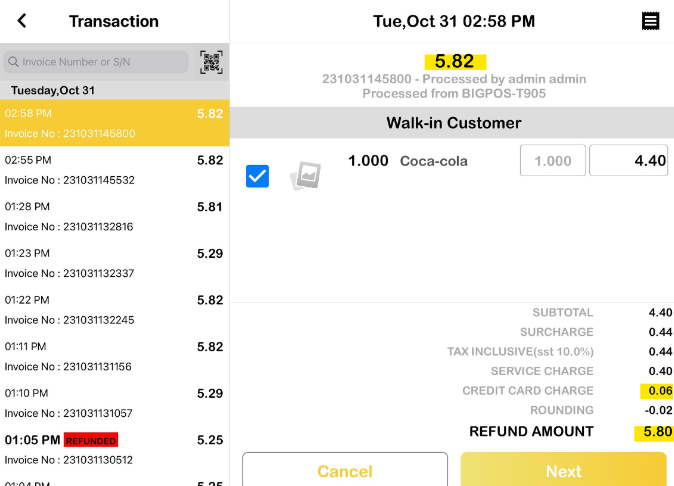
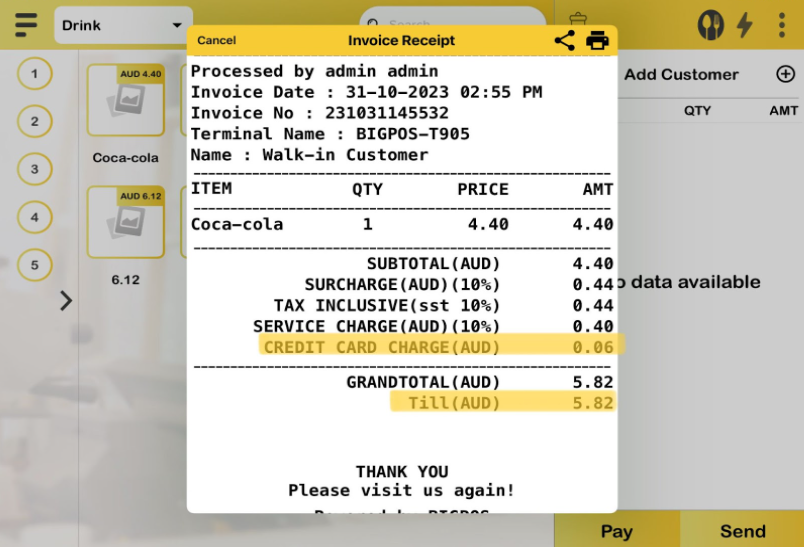
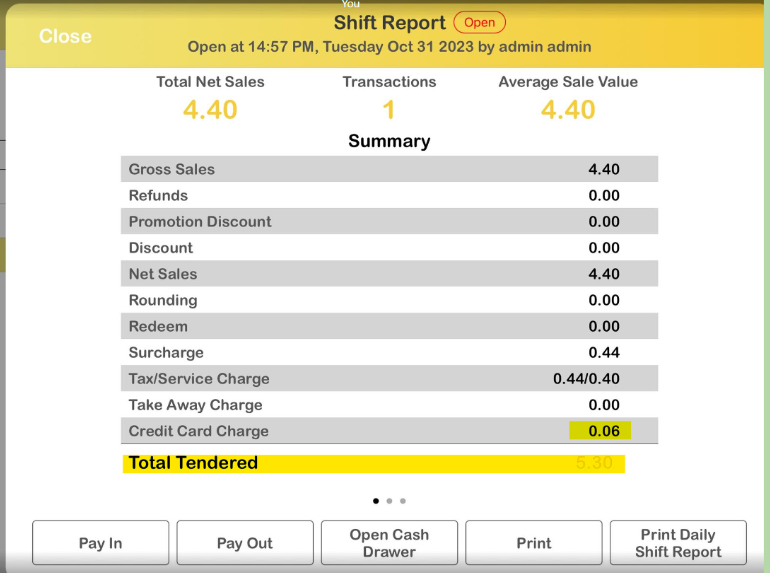
a) Any payment made using credit card charges will be displayed in the shift report, apps, and the QR Menu summary as ‘Till Surcharge Credit Card Charge“.
b) Expected if adding from subtotal row until last row unable to get grand total because credit card charge web not display in payment details.
c) Example:
Credit card web: 0.52
Till Surcharge: 0.06
Credit card charge display: 0.06
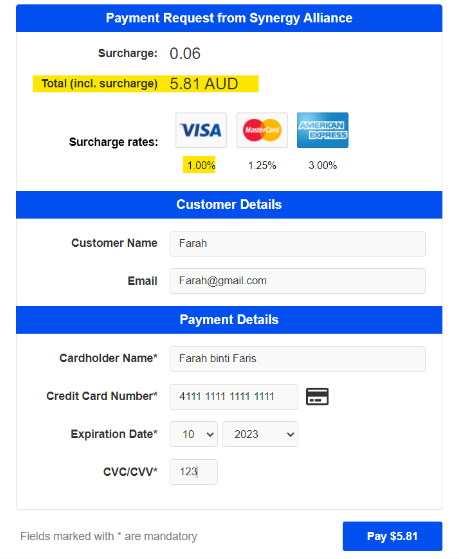
Example of QR Menu Till Payment
- As illustrated in the figure below, when making a payment using credit card charges, it will display the surcharge rates based on the types of credit cards.
Apps receipt display
- The figure below shows the invoice receipt for payments made using credit card charges. These payments will be recorded as ‘Till‘ payments.
Report Summary
In shift report summary, Till surcharge will be under credit card charge.
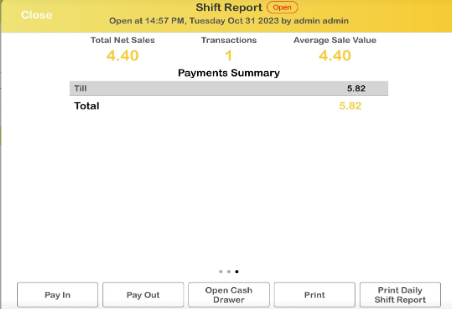
2. In payment summary, the Till payment will be displayed as figure below.
Refund
- Till online allows refund with Till and cash.
- It only supports full refunds, including credit card charges in the refund amount.
- Partial refunds will not included credit charge in the refund.