How Can We Help?
Attendance Report – Main Page
Introduction
Attendance Report allows monitoring of employees’ attendance within a specific date which calculates and reports their total working hours. This section introduces how to use the Attendance Report feature in BIG POS Web Admin.
Prerequisite for Using Attendance Report
- To use the ‘Attendance Report’ feature, each registered employee must sign in to BIG POS Lite or Pro version with their respective employee PIN so that record will be saved according to the PIN provided.
- The user must enable attendance system within the company profile of BIG POS Web Admin.
How to enter ‘Attendance Report Main Page’?
To enter the ‘Attendance Report Main Page’, follow the following steps:
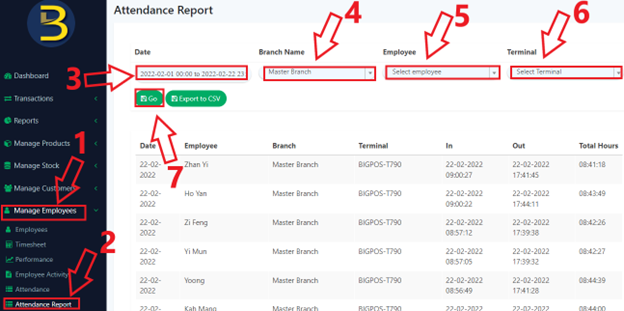
- Head over to ‘Manage Employees’ on the left side panel.
- Using the dropdown menu, proceed by clicking on ‘Attendance Report’.
- Specifies the date range to be inspected. (Optional)
- Specifies whether to limit the attendance to be queried according to branch in the ‘Branch’ input. (Optional)
- Select which employee to be inspected. (Optional)
- Specifies whether to limit the attendance to be queried according to terminal in the ‘Terminal’ input. (Optional)
- Click on
 to query the result and output will be displayed below.
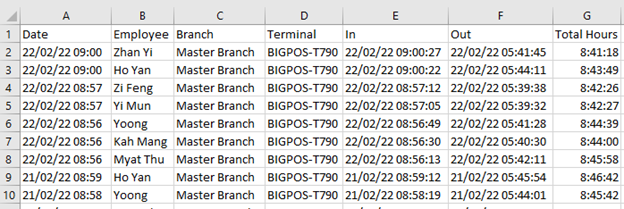
 - Sample output is shown below.
- Click on
 to export the query result into a CSV file.
 - Sample output is shown below.