Add reject button for delivery
Introduction
A new feature has been added that includes a reject button for delivery and a streamlined manually refund process that does not require auto deductions from merchant side to customer side for Malaysia and Thailand accounts. These changes apply to:
- Bigpos Pro (Android & iOS)
- QRMenu Delivery
- Web Admin (Transaction page)
Informations for delivery reject button
- Rejection only happen in new order tab.
- Rejection from Cash on delivery (COD) order -> generate CANCEL transaction.
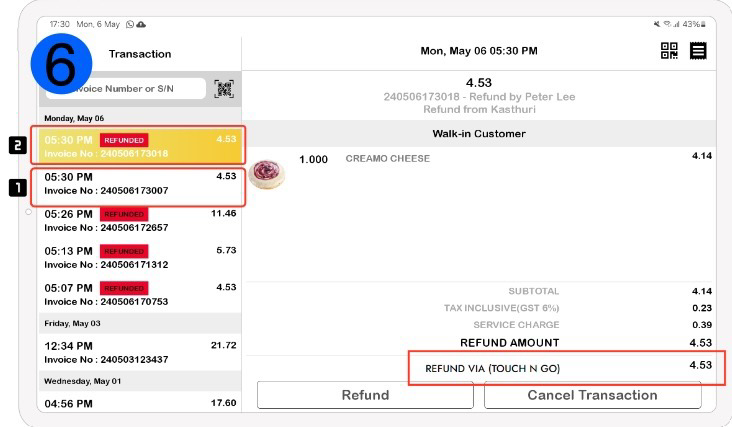
- Rejection from online payment -> generate 2 transactions (Invoice + REFUNDED transaction) after completed refund.
- Pickup order will display back in new tab order to allow cancellation.
- Refund with Revenue Monster/GB Prime pay/Fomo Pay will not use any API (which is no auto deductions from merchant side to customer side).
- Merchant side refund to customer manually.
- Online payment order allow to be refund in cash or selected online payment.
- Cancellation email send after cancel reason selected.
Refund tab
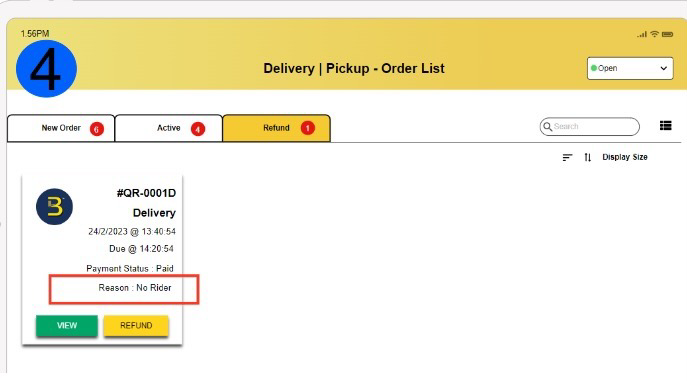
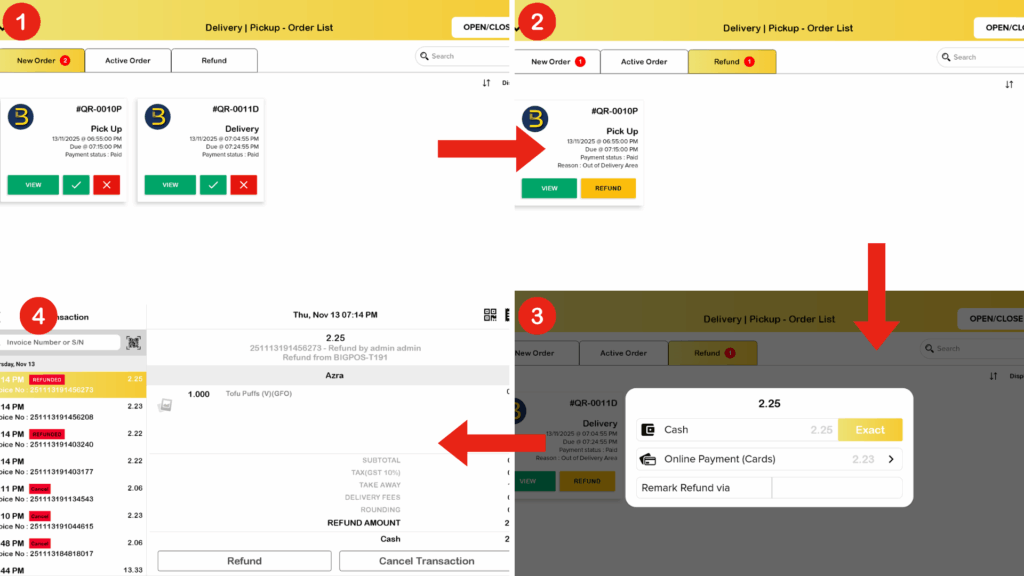
- A new tab called “Refund” has been added to the merchant Delivery | Pickup page. This tab is specifically for handling refund payment from orders that were paid using online payment but later rejected. Merchants need to manually process refunds for these rejected orders by clicking a “REFUND” button.
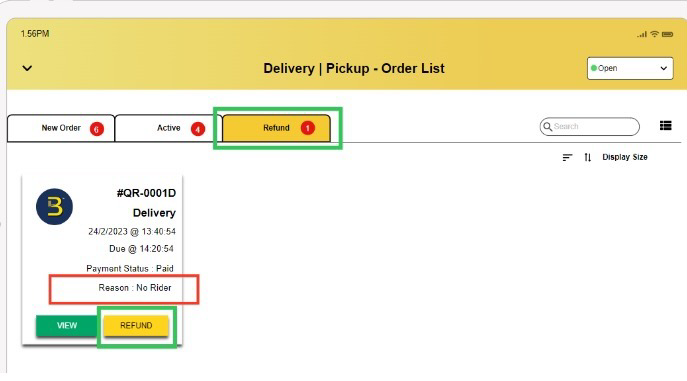
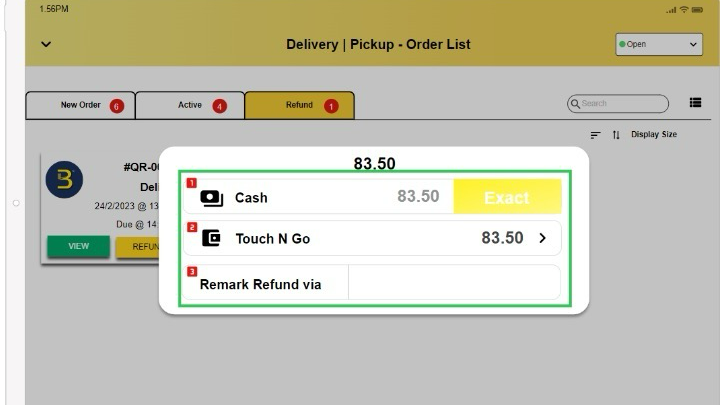
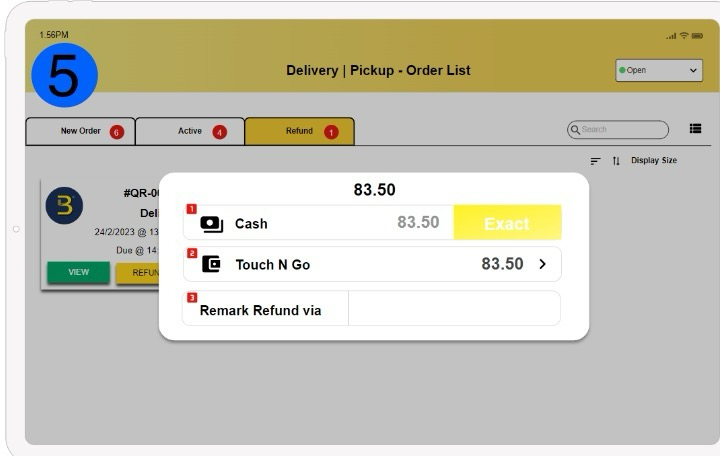
2. Orders paid online can be refunded either in cash or through the online payment method. Remark Refund via refer to selected online payment and will be reflected in the Transaction page.
Delivery latest flow (Without auto deductions refund)
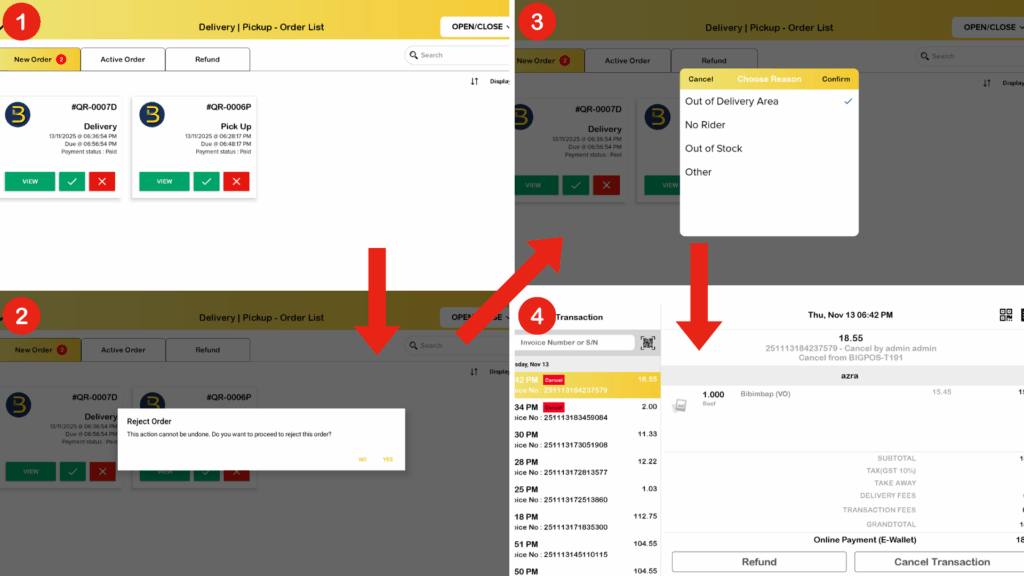
- CASH FLOW
- Delivery order received
- Press on (X) button
- Reject order confirmation
- YES – Choose reason
- Confirm & Send Cancellation Email
- Record in transaction as CANCEL order
- NO – Reject cancel
- YES – Choose reason
- ONLINE PAYMENT FLOW
- Delivery order received
- Press on (X) button
- Reject order confirmation
- YES – Choose reason
- Confirm & Send Cancellation Email
- Order move to Refund tab for refund transaction
- Generate TRANSACTION & REFUND INVOICE
- NO – Reject cancel
- YES – Choose reason
Manual refund without auto deductions (COD) display
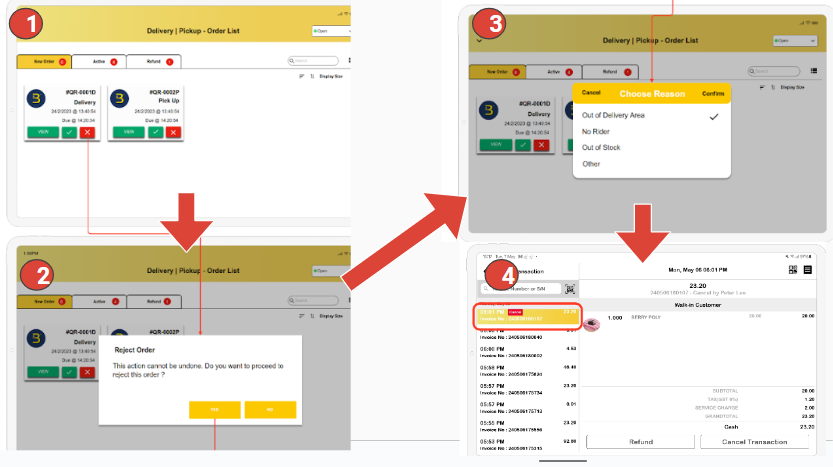
After step 3 , customer will receive email for cancel reason and app will generate cancel transaction invoice .
Manual refund without auto deductions (Online payment) display
Steps 1-3 same as COD . After step 3 , customer will receive email for cancel reason and app will only generate Transaction and Refund invoice once refund transaction fully completed .
New Update
Previously, only Malaysia and Thailand were able to reject the Own Rider Delivery order by manual refund and now the reject button are able to cancel the Own Rider Delivery order with auto refund for Singapore and Australia accounts.
Delivery and Self Pickup flow for Auto Refund
Reject Button Delivery/Self Pickup (Cash)
Delivery/self pickup order with cash is the same as manual refund because no payment occurs.
Reject Button Delivery / Self Pickup (Online Payment)
Reject Button Flow – Success
- Create Delivery/Pickup Order
- BIGPOS App > delivery order received in New Order tab
- Click on (X) button to reject order > select reject reason
- Auto Refund works > auto reject and refund to customer account > cancel invoice generated >> customer get cancel email
Notes: Auto Refund means when refund automatically returns the money to the customer’s account. Kindly make sure your internet connection is stable so the process can run smoothly.
Auto refund is supported for rejected Delivery/Self Pickup orders paid via Till Portal or Tyro payment method (AU region), so customers will receive their refund automatically.
Customers also can check successful transactions and refund transactions from Till Portal (AU region).

Reject Button Flow – Failed
When auto refund fails (because of weak internet connection) the order will move to the Refund tab and customers can choose to refund with cash or online payment.
- Refunds from the refund tab will not use auto refund. To refund, the refund tab will use manual refund.
Refund Method Info :
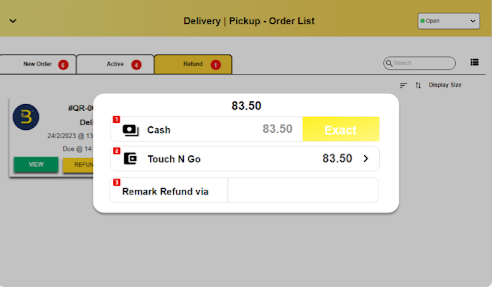
- Pay by Cash method, the amount is editable.
- Online payment method that the customer used to make the payment is not editable.
- Remark Refund via is to allow the merchant to remark on the payment method they use to refund the amount to their customer if it is different from the payment method that is used by the customer. If the refund is made from the same payment method then the merchant can leave the refund via box empty and proceed to press on the [ > ]/Exact.
Web admin changes (Transaction page)
Web admin site only added changes in Transaction page which including:
- Added delivery cancel reason
- Added refund via reason
QRMenu delivery changes
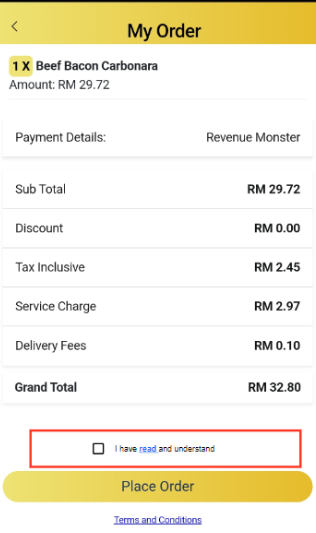
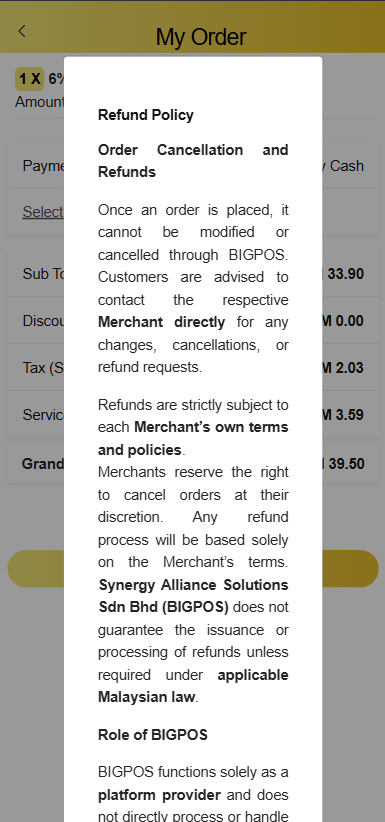
New checkbox function added in QRMenu order page to alert customer about refund policy.