Self Pickup with Pay by Cash Enhancement
Introduction
With our latest update, Self Pickup orders paid by cash now support an enhanced payment flow. Previously, when merchants tapped the “Complete” button for a Self Pickup cash order, the transaction would be completed immediately. There was no payment page to review or adjust the payment details.
With this enhancement, tapping the “Pay” button will now open the Payment Page, allowing merchants to select the payment method and enter the payment amount before completing the transaction. This improvement provides merchants with better flexibility and control when processing Self Pickup cash payments. This update applies only to Self Pickup orders with cash payment, while other order types remain unchanged.
New Flow of Self Pickup Pay By Cash
1. Order send from QR Menu
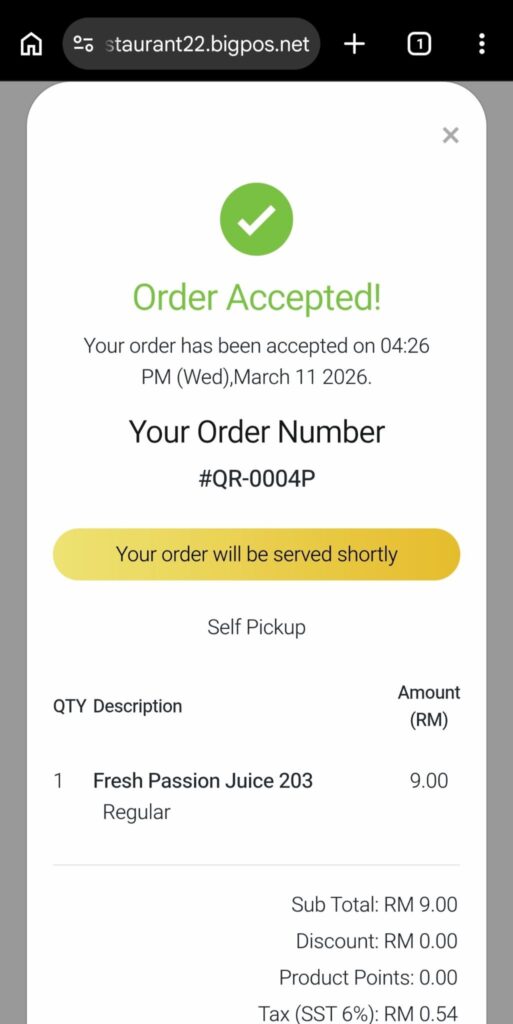
The customer places a Self Pickup through the QR Menu, and the order will appear in the Pro App for the merchant to review.
2. Merchant accepts order in Pro App
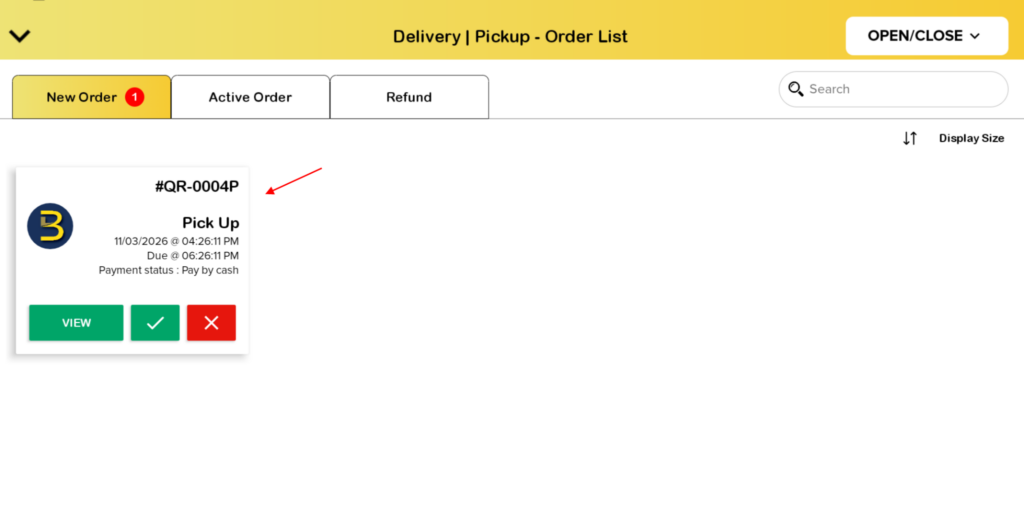
The merchant reviews the order details and taps the “checkmark” symbol to confirm the order in the Pro App.
3. Tap “Pay” to open payment page
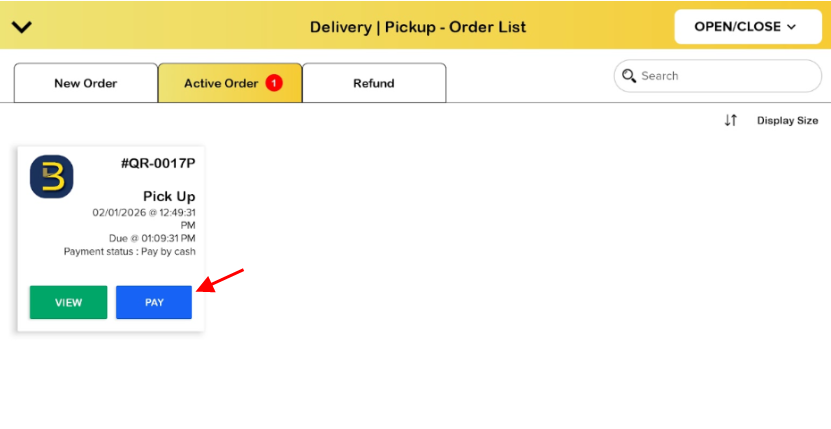
After accepting the order, the merchant taps the Pay button to open the Payment Page.
4. Select Payment method
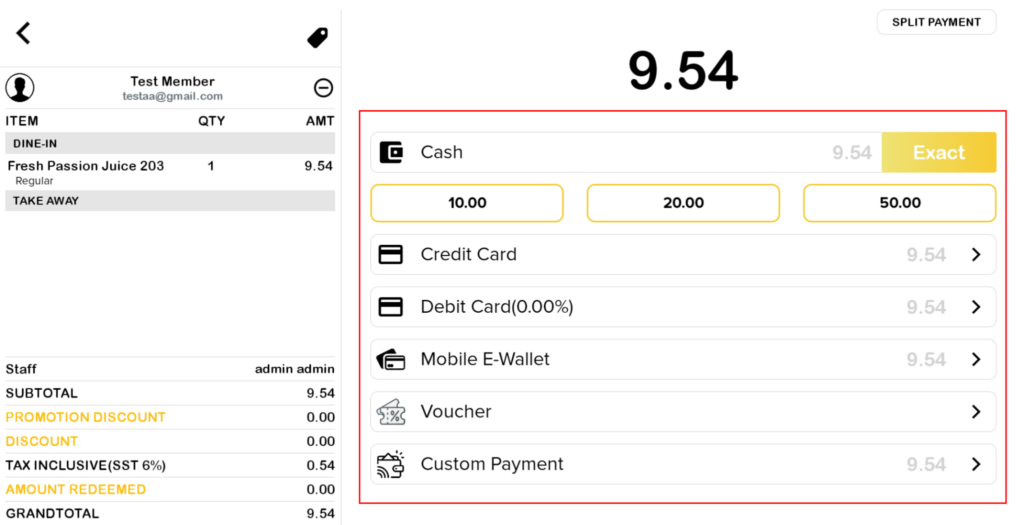
On the Payment Page, the merchant can select the payment method and enter the amount received from the customer.
5. Complete Payment
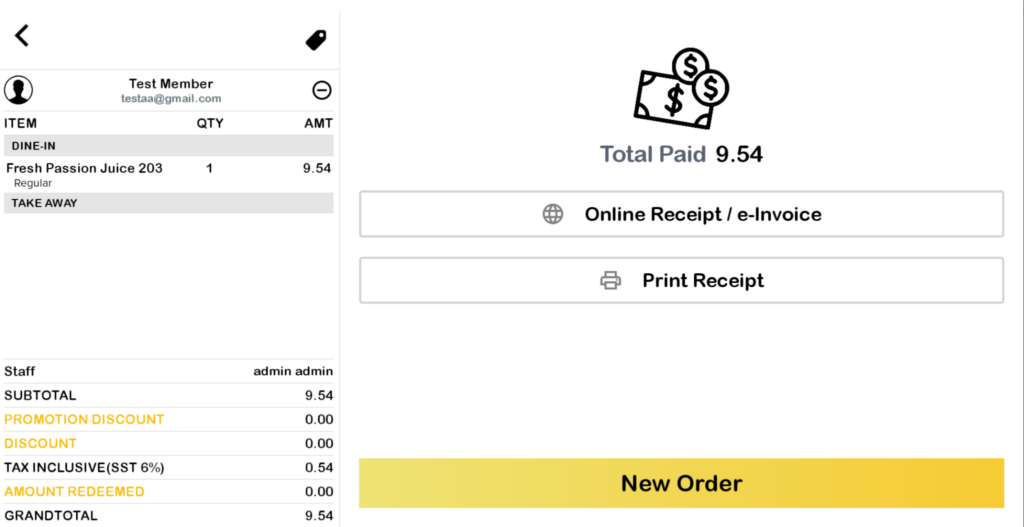
Once the payment is completed, a new transaction will be created. The customer will also receive an email notification stating “Your order has been collected”, along with the receipt.
Auto Print Receipt After Order Accepted Changes
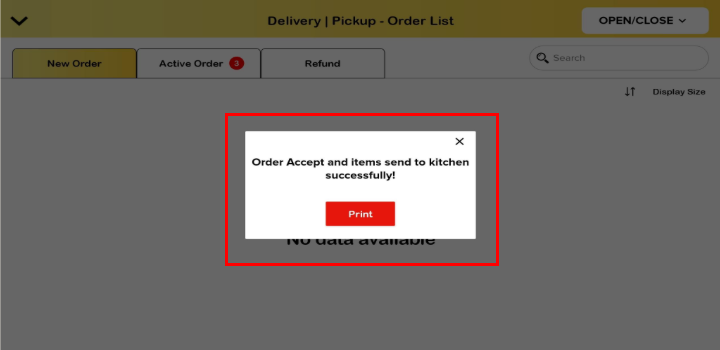
Before Changes
If “Always Print Receipt” is enabled:
- When the order is accepted, the receipt prints together with the order sheet and summary.
After Changes
If “Always Print Receipt” is enabled:
- When the order is accepted, the receipt will not print together with the order sheet and summary.
- The receipt will print only after the payment is completed.
Notes: Changes only apply for Self Pickup pay by cash orders and the rest remain current behavior.
Actions in Self Pickup Cash Payment Page
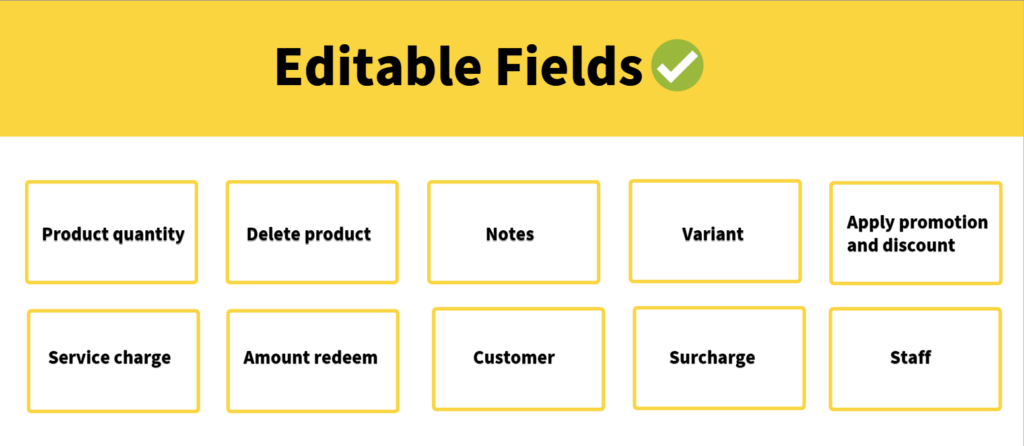
Editable Fields
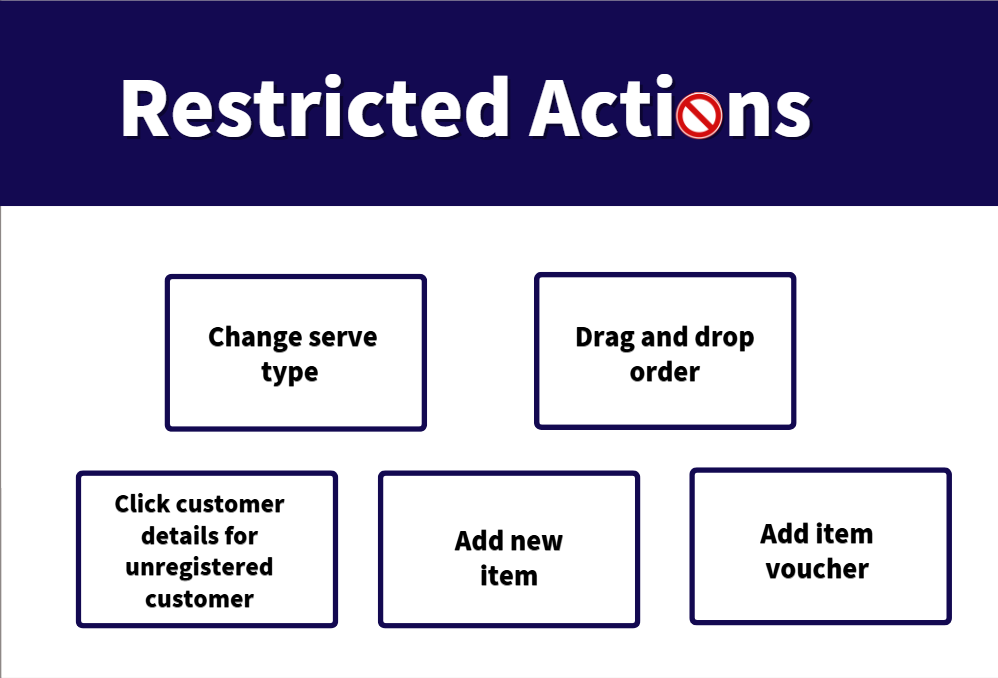
Restricted Actions
Behaviour of Registered vs Unregistered Customer
Registered Customer
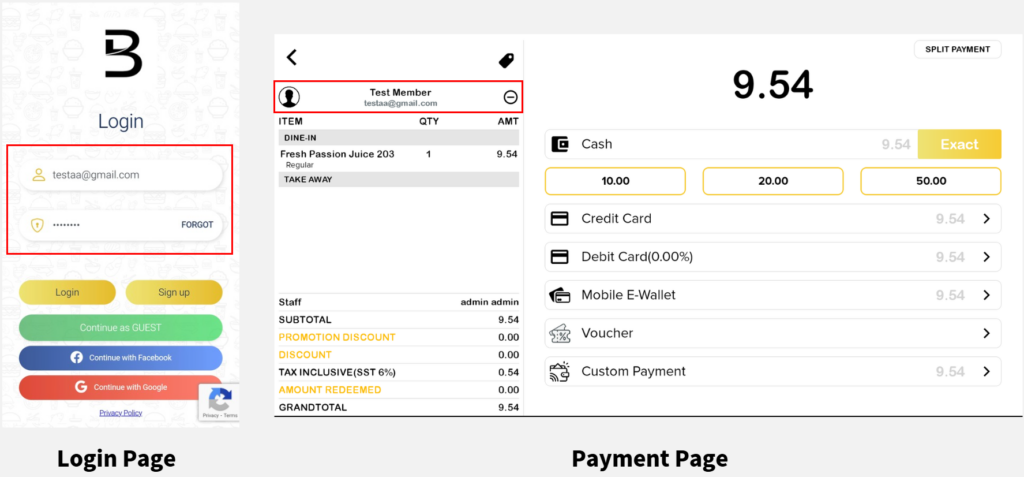
Customer can place an order as a registered user through the following methods:
- QR Menu – Customer signs in or signs up before placing the order.
- Pro App – Merchant selects the customer from the customer list.
Behaviour:
- Able to earn and redeem loyalty points.
- Transactions are recorded under the customer name.
Unregistered Customer
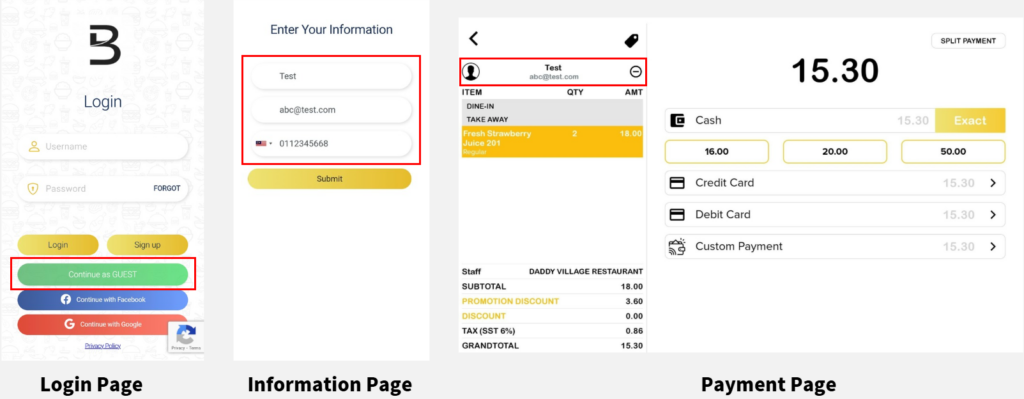
Customers can also place an order without registering.
- QR Menu – Customer logs in as Guest and manually enters names, email and phone number on the information page.
Behaviour:
- Unable to earn and redeem loyalty points.
- Unable to click to view customer details in the Payment Page.
- Transactions in Web Admin are recorded as Walk-in Customers.
Delivery Self Pickup Report Changes
New fields have been added to the Delivery Self Pickup Report:
- Credit Card Charge
- Debit Card Charge
- Custom Payment Page
Notes: These changes apply only to Self Pickup orders.